I’ve just finished reading on my iPad and iPhone Walter Isaacson’s superb biography of Steve Jobs. I knew much of the story he told from the various unauthorised biographies as well as individual blogs written about him, as well as movies such as “Triumph of the Nerds” and “Pirates of Silicon Valley”.
I saw Steve a few times up close when I visited the Apple campus in the last few years, but never had a chance to speak with him. I can certainly fantasise that he many have read some of my blog articles about Apple products such as the Mac, the iPod, the iPhone and of course his presentation software of choice, Keynote.
In more recent years, he spoke of hoping to keep Apple’s DNA alive after he was gone by dint of the new Apple building he has commissioned to be built on some previous Hewlett-Packard land. Perhaps he had read of the “Apple DNA” concept on my blog article in December, 2004, a screenshot of which is below. It is on this website that I first suggested Apple ought to make a tablet (I nicknamed it the iScribe) which would be brilliant for Keynote users to remote use:
(If you can find a description of Apple’s DNA earlier than 2004, please let me know!)
I’m sure many readers have fantasised what they would have said to Steve Jobs if they happened to meet him, and perhaps some of you have! My other fantasy includes him walking into my first Presentation Magic presentation at Macworld 2008, saying “This sucks!”, then taking over the show to share his presentation ideas. How I and attendees would have had special memories to take with us had that happened!
But before you think it merely fantasy, others in the health professions have indeed been on the receiving end of Jobs’ “advice” with regard to their presentations, especially when they used Powerpoint.
Walter Isaacson’s Jobs’ biography mentions his distaste for Powerpoint, and slideshow-based presentations in general (save for his own keynote presentations) on six occasions. You won’t find Powerpoint or Keynote listed in the book’s index, but in the iBooks’ version I have, you can of course do a global search for keywords. So, here you have them:
Global search of Powerpoint references in "Steve Jobs" by Walter Isaacson
We’ll work our way through some of them because it’s quite illuminating to hear what someone who presentation bloggers and authors rate as one of the world’s best presenters (and the world’s best CEO presenter) has to say about Powerpoint, and presentations in general.
Let’s start with the final reference where Jobs is very ill, and his wife Laurene and others have organised various medical and genetics research staff to investigate where next in his treatment:
One could just imagine Jobs focussing on the expectedly lousy Powerpoint slides of medical researchers while they’re focussing on his genome sequence for which he’s paid $100,000!
But earlier on the book, when Jobs has returned to Apple and is setting about constructing his “A” team to resurrect Apple, we see how he eschews presentations with slideware when he believes it takes from, rather than adds to, the creative process:
“People who know what they’re talking about don’t need Powerpoint”
This might sound strange coming from someone who was the original beta tester for Apple’s Keynote, and who continued to employ it to show Apple’s wares right up to the release of the iPad 2.
But as I have written elsewhere, a Jobs’ keynote does not engage the audience in a dialogue. The audience is engaged with the story he tells of Apple’s products and services, where he employs Keynote like a storyboard, outlining a roadmap. It’s not used as a lecture technology, as an adult training tool, or as a brainstorming of ideas technology. Jobs never hid behind his slides as so many people do, preferring their slides to sell the story. No, Steve emulated for us how the slides were adjuncts to our spoken stories, never getting in the way of what the presenter was saying or doing, but ready to illustrate ideas when words were not enough.
With Steve’s passing who at Apple can carry the torch for Keynote? The obvious answer is Phil Schiller who, after Steve, is most associated with demonstrating iWork in action at Apple keynotes, and showing us updates.
But is Phil invested sufficiently in Keynote to see it continue to be updated with features for a contemporary presentation population, both givers and receivers who have become steadily sophisticated in their expectations.
I say that with some sense of caution however. I was sent a link to YouTube video of several start-ups competing for venture capital, each giving a recent 3 minute presentation.
You can watch it below. But let me remind you that since the release of Lion 10.7 and a point update for Keynote, many in various discussion groups have complained of considerable unhappiness regarding the auto-update feature, which for some means minutes of spinning beach balls for even the slightest of changes to a slide. It has meant on Apple discussion support boards that some have either reverted to Snow Leopard or an earlier edition of Keynote so as to bypass the auto-save feature, or have returned (shudder) to Powerpoint.
So when you watch the video below, bear in mind two things:
1. There is still plenty of room for presentation skills training to judge by the young group of entrepreneurs missing the central point of their presentations, viz.: their failure to appreciate the most important obstacle to overcome as soon as possible is the audience’s fundamental cognition: “Why should I give a $%# about your product?”
2. Feel some empathy for the first presenter, who uses the organiser’s Powerpoint (Mac-based) when it falls over (at 2min56sec):
Notice too what happens when you don’t provide speakers with a vanity monitor, which I have been discussing lately. You’ll see how often the presenters need to look over their shoulder to see what’s happening and lose contact with their audience. Not good when you’ve only got three minutes to persuade people.
You’ll also see many presentation errors with the slides (perhaps I’ll use this as an exercise at my Macworld presentation), which shows I hope that even young, hip entrepreneurs whose presentations really count can so easily be sucked into the Powerpoint vortex of lousy knowledge transfer.
So the mission Steve started in 2003 with Keynote 1.0 is way from over, I believe. Yet the last significant update to Keynote was in 2009 when it moved to version 5, as part of iWork 09, giving us MagicMove (which has become a default Apple transition for their keynotes), some new chart animations, and some remote apps for iDevices.
In two months, it will be three years while its users have patiently waited for Keynote’s multitude of shortcomings to be dealt with in the form of a brand new version, making a significant form and function leap as did Final Cut Pro X.
Yet without Steve there to champion it, as he did in the final period of his life, who within Apple will take it to Tim Cook, hardly renowned so far as a presenter par excellence, and the senior executive team, and offer up an improvement?
Apple keynotes themselves have settled into a very predictable pattern, with incredibly overused build styles, such as the “anvil” whenever amazing financial figures are displayed. In the last few keynotes we have not seen any hints of new effects or styles, although of course there could be events happening outside of visual awareness, such as the much sought after timeline for more precise animation and build timings.
What’s worse, Apple’s own internal briefings using Keynote which I get to see when my MUG has an official presentation from an Apple rep., are merely Powerpoint converted to Keynote, and I recall conversations with my iWork contact who lamented the generally low level of presentation skills using Keynote performed within Apple’s various divisions. It’s probably why people like me and Larry Lessig were invited to present to the Keynote team, not just to discuss what we wanted in future Keynotes, but for the team to witness how to Present Different.
Prior to the current version 5, the longest time in Keynote’s history when its users had to patiently wait for a new version was twenty four months, between versions 1 (released January 2003) and 2 (released January 2005).
There were some minor point updates in that time, more for stability than features. Version 2 was a huge improvement, almost like going from OS X 10.1 to its first really useable, put away System 9, version 10.2, Jaguar.
Three years is a very long time, although if one lives in the Windows Powerpoint world, where in the last decade you go from PPT 2003 to 2007 to 2011, it’s not so remarkable. And in the face of continuing updates of significance to the iPad version of Keynote, perhaps not all hope is lost.
But unless we see something new soon, and the current Lion auto-save issue is resolved, I fear issues of abandonment will continue in the face of Apple’s seeming orphaning of what appeared to be one of Steve Job’s favourite applications he loved using himself; one where we watched its use in amazement not just of the products he showed as emblems of Apple’s DNA, at the intersection of technology and the liberal arts, but of the “how” he showed them, the likes if which in a CEO we won’t see for a long time.
I’m pleased to announce Ive been selected as one of five “Premium Training” workshops at next year’s new format Macworld|iWorld Expo at Moscone Centre, San Francisco.
The IDG team has cut back from the many all day workshops of previous years, experimenting with formats for the show, following the cessation of Apple appearing officially at Macworld. Their last was the 2009 Expo, when Phil Schiller headlined the final Apple keynote. Much gloom and doom descended upon Macworld, but the IDG team have risen to the occasion and surprised many who though the show was dead.
IDG has had two years since Apple’s pullout to finesse the show and make it something Apple users will want to attend.
Already I’m hearing chit-chat on various Apple-oriented podcasts casting doubt on how IDG management has decided to move forward. Whatever the case, I feel confident I was selected to present a Premium training workshop due to my previous evaluations and the numbers who’ve attended my sessions since I first appeared at Macworld in 2008 (when Steve Jobs introduced the Macbook Air in his last Macworld keynote which I was fortunate to see).
Here’s the write-up on my one day session on Wednesday January 25, 2012:
WA: Presentation Magic with Keynote Les Posen, Chief Magician, Presentation Magic Apple’s Keynote is one of the most loved of Apple’s professional and educational products. While it can be used very simply depending on the presenter’s need, knowledge of presentation skills from both a design and neuroscience background will allow Keynote users to take their presentations to their next level, helping them make outstanding presentations.
This will be a fun, engaging and educative day where Les will do the walk and the talk. Attendees will leave, rushing to their Macs and iPads to make changes to their very next presentation.
Who Should Attend?
Anyone who wishes to reach out to their audiences, whether live or via webcasts, and make a difference to how they learn. Prior knowledge of presentation software will help.
Attendees Will Learn:
The essence of making persuasive audience-oriented presentations, how the brain works when it comes to creating presentations, the power of Keynote to help the message delivery process, tricks and shortcuts to assist learning, Keynote features often overlooked, answers to many practical presentation issues, deconstruction of slides and presentations that work and don’t work.
(Um… I also authored the abstract so you get some training in persuasive message delivery too!)
If you can’t make the workshop (do recommend it to friends, and perhaps you each can write to me with your particular training needs which you might ask me to cover), I am also doing a 45 minute Keynote-based session the next day as part of the TechTalk sessions:
TT943: The Magic of Keynote Les Posen, Chief Magician, Presentation Magic
New users to the Mac platform who bring with them the Powerpoint workflow often merely reproduce Powerpoint’s style with Apple’s Keynote. But Keynote can do so much more because of its advantages, if only users’ minds can be opened to its possibilities. There’s steal magic to be had in using keynote, and Les will demo the kind of Keynote uses that have audience go “Wow”, and then moan they can’t reproduce the effects on the Windows PCs!
With the online training business now worth billions, it’s time to see just what Keynote is capable of doing.
Who Should Attend?
All who wish to present better no matter the audience, and wishes to see Keynote pushed to its boundaries
Attendees Will Learn:
The capabilities of Keynote and presenting when the blinkers are removed!
By the way, it’s been a while since I posted some Presentation Magic and presentation evaluations and feedback, so head over to the Evaluations section here to have a read.
There’s a reason why I give away my information and experience on this blog for free, without expectation of reciprocal exchange.
It helps me bring my ideas to paper, to sort them into practical “chunks” so that when I give paid workshops, there’s a place for people to go to investigate more of my ideas and practices. The blog brings me no income, as you can see, containing as it does no Google Adwords or other sources of money, not even a tip-jar.
There’s also an area after each blog entry for readers to both make comments, and to pass on to others the entry link to share around.
So, when I read a blog entry from another presenter which is critical of my endeavours and yet offers no opportunity to respond directly, I have to use my own blog to open up the discussion and see where it takes me and my readership.
Such an event occurred today when my twitter feed showed the following:
Hmm… Something I’ve shown hampers public speaking inadvertently? Well, colour my curiosity piqued!
Heading to the linked website, reveals a blog link on José Silva’s Scrapbook which examines my recent APEX presentation in Seattle which I uploaded to YouTube and blogged about in much detail, describing my choices along the way.
Here’s how José begins his blog entry – and I’m grateful he gets to the point and doesn’t make me wait around too long!
Presentationist Les Posen inadvertently shows why one of the products he recommends is likely to make presenters worse public speakers.
I like Les’s Presentation Magic site (on the internet we’re all on a first name basis, right?). I think it focusses a bit much on presentation sizzle, but then most sites on presentations do. Tufte and Norman, when they discuss presentations, are the exception.
If he sat down on a comfy chair it would be less distracting; it would at least feel natural.
The iKlip in question is merely a holder for my iPad attached to a microphone stand. It facilitates using the iPad as a vanity monitor so I can best know what’s happening on the main screen behind me without turning my back to the audience.
Previously, I’d either use my Mac in presenter mode – something which means you’ve got to stand within easy sight – or bring with me my own vanity monitor and a switch box so the feed to it and the data projector match. Most conference venues will nowadays supply with you a monitor but it’s expected you’ll use it in mirror mode, something I believe is unhelpful to professional presenters when compared to being in presenter mode, previewing the next build or slide.
The iKlip merely allows me to position the iPad in such a way as to facilitate presenter mode, although because I also use the Doceri software package, I can annotate the slides at will. I’m sure many in education will find that facility very useful, and if one’s running an all day workshop, you could add a white slide to the end of your Keynote or Powerpoint stack, and use Doceri as a whiteboard.
Returning to José‘s critique, he observes something I had not perceived or received feedback from others: that I appear to be standing at “parade attention” due to needing to be in close proximity to the iPad, and this is not good public speaking practice.
Personally, I don’t experience my presentation that way, believing myself to be quite animated using hands, body and voice appropriately. Jose would prefer me to have my iPad in my hands and move around the auditorium, freeing up myself and not appearing so stiff and “unnatural”.
In preparing my response, I was reminded of my training in Family Therapy more than twenty years ago. This therapy developed in response to an increasing medicalisation of behavioural issues, especially in children, as well as institutionalisation of those with serious mental illness issues.
Rather than seeing a child or adult as being ill, Family Therapy asked therapists to look at the presenting problem in more systemic, global ways, so that the individual was referred to as the “Identified patient” but treatment involved the entire family. The idea was to remove stigmatising and paralysing “blaming of the patient” and look to see how the whole family interacted and to give the family work to do between sessions to ameliorate the “identified” problem behaviour.
This was a radical approach at the time, and required radical interventions. One of these was the Greek Chorus and the one-way screen. Essentially the therapist interacted with the family while a team behind a one-way window observed the family-therapist interaction, using a two-way intercom to call attention to behaviours not necessarily witnessed by the therapist as well as offer questions and observations, hence the Greek Chorus, as it was termed.
Such devices are great for therapists in training, even if it’s a rather nerve wracking experience. Those behind the screen also had much learning to do, sharpening observational skills, formulating hypotheses about what they were witnessing, and providing feedback and guidance to the therapist in the room with the family.
There was one thing though one learnt via this experience: ultimately, the therapist in the room was best placed to “feel” the ambience and mood in that room, something not experienced behind the screen. Whatever advice they received via the intercom, it was their choice as to what they acted upon, sometimes discarding it completely.
Later, in the group debrief, they needed to justify their actions, and the “you had to be in the room” explanation was used sparingly, since it’s hard to put into words the “being with the family” experience.
This is my rebuttal to Jose. What he’s seeing is a video of what happened in the auditorium where the presentation took place. I was there, and responded to the experience as I felt best at the time.
Let me get more to the point, so we may all learn something here.
How I chose to move or not move around the auditorium was determined far less by the iKlip and Doceri than Jose would have it. It was more determined by the practicalities of my audiences. Yes, audiences.
You see, going into this presentation I had in my mind several audiences whose compositions and needs I could only guess at. The first audience was the live one in the room, composed of aviation personnel. As it turned out, they were not a homogeneous group, but came from many areas of aviation. They were seated in a very large room, which held 250 people. The room setup was to place the presenters on a podium, the guest speaker behind a lectern, stage right, and the slideshow way over on stage left.
I was probably the only speaker on the day to get down with the audience, and use Keynote, not Powerpoint. (Many conferences I attend either expect you to bring your own laptop and do all the tech support; or they go completely into control freak mode, and expect you to hand in your Powerpoint which they place on a central server to be played on their supplied PCs.)
So that’s my primary audience which will give one instant feedback as to one’s presentation, and either charge you up or deflate you as you go along.
But I also prepared, when constructing the presentation and its delivery, that I would have at least two other audiences, with quite different learning expectations and priorities…. and these would not be in the live audience to give me instant feedback.
It was my plan to video the presentation and give it to the APEX education committee to place on their private site, for members to watch and download at their leisure. What I was told was that my slides were required for this exercise. And of course I know that if I just sent them just the plain slides without builds and transitions or the accompanying stories, so much would be lost in translation. Of course, being steeped in the cognitive style of Powerpoint (having seen previous APEX slides), their expectation was that my slides would contain all that was needed to convey my story, without my narrative or voice-over. I knew otherwise, so had planned to video my presentation with me on the floor, and cutting in live-action video with my Keynote slides to make it a far more engaging video.
If you go back and view the video on YouTube, you’ll see why I had to limit my movements, so as to stay in camera shot. My iPhone was stationary and set by me to record, with no one to track me as I moved about. Hence, the need not to move out of camera range. That would be fine for the live audience, but the audience watching on YouTube would find it frustrating just to see me move in and out of camera. Here’s Jose himself in action from a camera’s static position, with an hour’s lecture sped up to take just a few minutes (much like we see how Boeing or Airbus assemble a plane in a two minutes.)
Firstly, here’s a screenshot from the video of Jose out of screen range:
This is what I tried NOT to do, and if one of the resultant effects was to come across stiffly, I was prepared to pay the price.
Here’s his YouTube video, and I’m not sure when I watch what is the message behind speeding it up. Note also the hulking and distracting video monitor stand in the centre of the video. Give me my less intrusive iKlip anyday 😉
I mentioned earlier three audiences I was addressing: (1) the live audience, (2) the aviation audience who would watch it on the APEX members-only website, and (3) now a third audience: my own presentation training audience who would watch the video on YouTube where its subject, fear of flying, was merely a vehicle to illustrate my presentation ideas.
For them, how I constructed my slides has always been of interest, but this would be the first time many who had not attended a Presentation Magic workshop would witness me interact with my slides and a live audience, and then read about what and how I did what I did moment by moment. If you can find another presenter who has done this naked work (so to speak) please send me a link so I can put it here and share it.
(This is likely why Jose’s blog entry confused me, focussing as it did on such a small element of my presentation, and making a big deal of something, warning other presenters their’s might be negatively affected.)
I want to focus on a couple more comments Jose made on his blog entry. He asserts I would have come across as more “natural” had I sat in a comfy chair and opined.
Sitting in chairs has the purpose of making a presentation more intimate with strangers. We’ve seen this when the Apple executive team demoed the iPad in keynotes, and more recently, it’s the setup Walt Mossberg took at his and Kara Swisher’s All Things Digital conferences, such as their recent one in Hong Kong.
So sitting down has its place in public speaking in order to create an intimate dialogue when in front of a rather formidable audience or in a friendly small setting, because you want to create a special feeling in the room.
In my presentation at APEX, I was not interested in an intimate dialogue. I was challenged with 30 minutes to convince three audiences of the worthiness of my ideas, and my authority and authenticity in at least two fields: aviation and public speaking. It was not a time for intimacy.
Let me finish this critique of Jorge’s critique with his final words:
For me, Doceri won’t help. I use either a real teleprompter, the eyes-only presenter screen on large monitors at the ten-and-two positions on the floor, or — overwhelmingly — good memory supplemented by notes.
This is all well and good if you are repeating lectures in a familiar environment. But if you’re a public speaker as I am, most often – actually invariably – you are not given these tools Jose relies upon. So, I have to be inventive and the iPad, Doceri and the iKlip take me a long way to being self-sufficient as a presenter while hopefully delivering high quality presentations to diverse audiences on diverse subjects in diverse and sometimes hostile locations.
I appreciate the value of a great memory (which is why I rehearse so much as its an aide memoire), as are notes as long as they don’t interfere with you connecting to the audience.
But I fear that there is only so much of a rapprochement possible here. Focussing on such a small component of what I think is a rather complex, multilevel presentation with numerous audiences in mind doesn’t give me a sense of optimism.
In my previous blog post, I wrote of presenting to an Aviation-based convention, APEX, held in Seattle the second week of September, 2011. This was an important time for aviation and travel, given it coincided with 10th anniverary of the events of 9/11, and their aftermath, which continue to impact on travel.
This is especially so in the USA, where commercial aviation remains vigilant about repeat events, while trying to make travelling by airliner as comfortable and pleasant as possible, in the current circumstances. It’s not an easy ask, but technology appears to be coming to the rescue, up to a point, by its introduction to the cabin environment of everyday technologies, such as wifi, iPads and other sources of entertainment to while away the hours. It’s as if a return to the fun days of commercial aviation is possible, before the introduction of budget airlines and tight security.
I had such issues in mind when I constructed my presentation on fear of flying for aviation personnel for the APEX conference , which I delivered at the convention, September 12.
As my previous blog entry describes, I was the first of three to speak in the late afternoon session, which allowed me to set up my equipment during the coffee break.
This included setting my iPhone 4 on a nearby table so as to video record my presentation for later editing.
That’s now complete, and the result is on my page on YouTube.
Now I get many notes in the evaluations of my Presentation Magic workshops, or indeed any presentation I do using my presentation magic “style”asking how and why I did what I did.
So, I decided I would do a Director’s Cut version of my APEX presentation here on this blog. Those in the aviation industry who watch the video will likely not be interested in the same things as presenters wishing to learn more of my presentation concepts, so it’s here in this blog where I’ll ask you to follow along.
You can do this in one of two ways:
1. Just watch the video through from beginning to end (it’s roughly 38 mins) and let it wash over you as if you are a member of the intended audience.
2. Or, you can open it in a separate window and keep this page open as I take you through each element on a timed basis, using the time elapsed in the YouTube video as the key.
3. Or you could do 1, then 2, and see the video twice. Hence, the reason for calling it the Director’s Cut, as is done with DVDs with its extra tracks.
How was the video constructed
One of the missing elements in the current edition of Keynote 09 is a timeline, an easy way to edit resultant videos so as to play as a standalone video or on a service like YouTube. When it exports it as a video, Keynote either allows the viewer to manually advance each element of the video, or it allows for a fixed timing for each build and slide. This has its uses but not with the video I wish to show you.
For this, I had to step away from Keynote and use an editing software. I could have used iMovie or Final Cut, but instead I chose software which I find more intuitive and that’s ScreenFlow 3 from Telestream, the same people who provide Flip4Mac to allow viewing of .wmv movies on Macs seamlessly.
Intended initially to help software developers make videos of to show users how to best employ their apps by showing the workflow on the screen, I find it has applications to help make up for Keynote’s shortcomings.
The Workflow
To record my presentation, I simply placed the iPhone on its edge, having made sure the camera captured the physical area in which I would be presenting. I switched it on as the session started, then moved into frame for the introductions.
At the conclusion of my presentation, I synched the iPhone with my Macbook Pro, at which time the 3GB or so video was imported into iPhoto.
From there it could be dragged into the ScreenFlow 3 timeline, where the audio and video tracks were separated. I needed to do this because my Keynote file also contained movies with sound which needed to be mixed with the live sound so as to capture the audience reaction to what I was showing.
My intention was to cut back and forth between the live presentation featuring me centre stage with the projected images behind me (see below), and the movie of my Keynote file, once it was exported in Quicktime format.
Here
All things considered, the Quicktime output does a good job of preserving the embedded video files and maintains the sharpness of the fonts, pictures and build styles and transitions, as long as you don’t overuse compression protocols. I actually allowed the Quicktime movie to be in DV-PAL format despite the resultant size, which was then imported into ScreenFlow 3. The resultant file was more than 4GB.
I could have extracted the audio and video from this Quicktime file, which woud have left two audio and and two video files. This is not the sort of production I do everyday and I wanted it up on YouTube quickly, so I left the Keynote video intact, with both audio and video. In future efforts, I may change the workflow and separate the tracks, but the issue of keeping all the material synchronised is a serious challenge.
The decision one needs to make in producing this kind of video is when to cut away from the live presentation to the Keynote presentation and when to cut back. It needs to be done smoothly with consideration given to any transition styles, just as one would with Keynote or Powerpoint.
Up to a point, the decision is made for you. At the beginning, you have your opening slide where you’re being introduced, then cut to you making your opening statements with the same opening slide behind you, then cut to the slideshow again once the first slide makes its appearance.
It’s actually not quite as easy as it sounds as I wanted to use some of ScreenFlow’s built in transitions to make the appearance a little easier on the eye, rather than just cut back and forth. This means careful timing so as not to cause a disjuncture or rupture of the sequence, nor loss of information on the Keynote builds I used.
Let’s just say that it required quite a few “undo-redo” commands before I was happy with the outcome. This wasn’t easy, since the more small Quicktime movie files built up (rather than two long videos), the more ScreenFlow began to act flakily, crashing frequently, something I am still working with its helpdesk team to resolve. In essence I had scores of small Quicktime movies from both the Keynote video and the iPhone video littering the timeline, and it’s likely these choked ScreenFlow. Trouble was, rather than falling over early in the export of what I thought was the finished product, it fell over right at the end, often after a half hour of processing, only to have me start again. Very frustrating.
In the end, I firstly exported the Screenflow audio track only, then the video only using Voila’s Screencasting ability. The irony here is I had to use a screenmovie (Voila) of a screenmovie (ScreenFlow 3) to achieve the final product! I then used Quicktime Pro to bring video and audio together in synchrony.
So, let’s go to the YouTube video now, and I’ll walk you through a timeline of what, how and why I did what I did, including errors which I would correct if I gave the presentation again. This way we all learn.
00.00: This is the slide I created by using the brand slide I was asked to use throughout my presentation by APEX management. I used it only once, because it made no sense to use it elsewhere. I saw some other presenters staying with it, but then others merely used their own presentation stacks which they had clearly used for other conferences or sales meetings.
While I’m being introduced by a member of the APEX Education Committee, I’m actually fiddling around with the Macbook Pro on the ground, tweaking a few things. I left this out of the video 😉
00:27 I use one of ScreenFlow’s transitions to open the live video coverage. I had positioned my iPhone so as to capture a fairly wide shot yet with me in the centre, with the screen behind my left shoulder. I actually placed some marks on the floor so as to remember where I ought to stand most of the time, especially when I played videos and needed to be out of shot temporarily.
If you look at the first time I’m shown, you’ll see my Macbook Pro on the ground infront of me (it has an Incipio black cover so as to not draw attention to the Apple logo. If people think I’m using Powerpoint to achieve my effects because it looks like I’m using a Lenovo or Dell laptop, all the better!).
Also, you’ll notice my iPad sitting in landscape mode in an iKlip holder attached to a music stand. This is my vanity monitor setup, with Doceri software allowing me to see what’s on the screen behind me, and to go into presentation mode at the tap of a button on the iPad screen. In my right hand, is my Kensington remote for controlling the Keynote show.
00:46 At this point, having read the bio I had supplied her, the session moderator asks this aviation audience if anyone has a fear of flying. To her and my surprise, quite a few hands go up, and I’m already thinking ahead about my content and if it will need any alterations on the fly given the audience composition.
I thank the host, and launch into one of three different introductions I had rehearsed, depending on the size and composition of the audience, as well as the tone set by the moderator. I rehearsed these out aloud in my hotel room to hear what sounds good, and to make sure the words come out clearly, given the audience might be surprised at my Australian accent. This is especially the case as the audience was a very mixed one culturally, a point I’ll come back to later on when I discuss a potential faux pas I made.
Notice how the brightness of the screen behind me washes out much of the slide due to the iPhone 4’s mediocre camera quality, hopefully improved in the iPhone4s, just released. This is why it was necessary to edit in the actual slides from Keynote.
01:12 An unrehearsed element here, where I acknowledge the number in the audience who have identified as having a fear of flying. It’s possible I might call on them later in the session to discuss some of my ideas in a workshop style, but frankly time is so tight (I have 30 minutes allotted to me) it’s unlikely.
01:17 At this point I launch into my prepared and rehearsed presentation with accompanying slides. Because fear of flying is an almost undiscussable in the aviation community, especially this one which is about the positive passenger experience, I knew I had to make the subject palatable rather than scholarly. An academic presentation would be for a different audience. This audience needed to be convinced it was a worthwhile topic, and that if they understood it, there could be financial gain for them.
So I started off by taking a one-down position, making fun of myself for having chosen potentially the wrong profession to be in, by focussing on two times in history when fear of flying was not at all unusual, and thus not requiring the services of a clinical psychologist.
As you’ll hear, the first was during the barnstorming days in early aviation when it really wasn’t that safe to fly.
01:37 I needed to get this group onside very quickly given their expected defensiveness, and so early on I introduced a visual joke, using aviation terminology to catch the audience off guard: “If you were offered a seat on the wing, they really meant it!”
This generated a little laughter, as if the audience wasn’t sure if they were meant to laugh at such a serious, academic and potentially dry subject, but as they got into the talk, you can hear how they loosened up, hopefully with me giving them permission to have a chuckle. This is part of the engagement process, keeping your audience expecting more fun or surprises ahead.
01:49 Note how the picture of the wingwalker is framed like an old photo album, using one of Keynote’s border features including album corners. You’ll see the picture dissolve into full colour, because it’s actually a very modern photo. I had tried to find an original photo from the barnstorming days, but failing that I located a modern one, and using an effect from software called FX Photostudio Pro (which came with one of the recent Mac software bundles), I used a supplied filter to give it an aged look.
The use of a fullscreen, high-res photo which then dissolves into a full colour image gives the audience an immediate sense that this is not your usual Powerpoint. It keeps me central as the main generator of words and ideas, and informs the audience from the get-go that this will be a highly visual presentation, accompanied by my commentary.
I do this in almost all the presentations I give no matter what the subject. Those opening moments are crucial in setting the mood and expectations for what is to follow in the next 30 minutes.
02:00 At this point, I head into some rehearsed storytelling, attempting to establish the long history of treating fear of flying, starting with the first flight attendants, who were in fact, nurses. This likely comes as a surprise to many in the audience, and I personalise the story by focussing on a groups of flight attendants (FA), and at…
02:07… I single out Ellen Church as the first FA and tell a little of her story. Note please how I do NOT use a laser pointer to locate her on the slide. I dissolve to a second slide – a duplicate of the first – but where the second slide is altered in both sharpness and contrast, leaving a cut out of the subject in high contrast so the eye is drawn there. I also use a shadow effect to outline her with a glow so as to be absolutely sure where your attention goes. I believe it’s important early in a presentation to have these effects to train your audience to expect their attention to be directed by the story you are telling.
How I actually created this effect in Keynote is interesting. I used Keynote’s “Mask with shape” feature to create the cutout of the subject from the first slide which was then pasted into the second slide, and the two slides are then dissolved. To the audience it appears as if the subject has materialised from the slide, which is the intended effect, and they are oblivious to the fact two slides were used. This is not easy to achieve in Powerpoint, because its “dissolve” transitions do not come close to Keynote’s underutilised and underestimated “dissolve”.
02:30 I continue to establish the story of FAs and their initial employment to help nervous flyers, thus establishing that fear of flying is as old as flying itself, and thus there is a body of knowledge about the subject. However, I still need to make the connection to current understandings of fear of flying, and why it is still a relevant subject in 2011, despite the vast improvements in aviation safety and comfort.
03:10 The slide has been on the screen for long enough, so it’s time to give the audience more things to please the eye and ear, yet remain true to the story I’m telling. At this point, I introduce the audience to a new ABC TV show which is due to start in two weeks from my presentation (September 25) called, PAN AM, based on the defunct airline during its halcyon days in the 1960s, when commercial aviation was still glamorous and exotic.
With the video I am hoping to hit the audience with some emotion – nostalgia for the “good ol’ days” – and at the same time, demonstrate Keynote’s seamless segue to video, something those using older versions of Powerpoint struggle with. Note at…
03:13… my choice of transition, the droplet, to convey a change in time, much like you see in movie dream sequences, or when directors wish to convey a memory or scene change an actor is experiencing. What you see and hear is the video of the exported Quicktime of my Keynote file, with no resolution loss at all.
03:37 The edit here is a bit too sudden, when the actress says, “You’re famous now”, and if I were to re-edit the movie, I would soften the transition.
04:04 I am back centre stage to bring my first point home: the notion of there being a time when it was normal to have a fear of flying, because indeed it was a risky time to fly, and not at all irrational, thus not requiring the services of a clinical psychologist.
At this point, I remind the audience I earlier mentioned there being two times when it was normal to be fearful of flying, and now I’m about to introduce the second and more contemporary time, which has direct relevance to the date on which I’m presenting.
04:09 I wanted to talk about the second time being post 9/11, and how companies refused to let their senior staff fly rather than drive to business appointment if they were less than 500 miles away. I needed to find a visual to represent 9/11, and did not want to show the audience of aviation personnel images of crashing planes. For all I know, they may have known victims on board the aircraft involved, and I needed to be respectful of this. The image I used contained elements of patriotism for whom I assumed would be a mainly American audience, as well as showing the WTC towers intact. As it turned out the audience was very mixed in terms of nationalities, and the patriotic image was likely unnecessary.
04:20 I surprise the audience with stories that the fear of flying business suffered after 9/11 because no one thought it strange to not want to fly in the months after.
04:27 I bring in these New Yorker magazine covers (September 24th edition) to break the previous image being on the screen too long. I created these two magazines from a single cover from a gathering of some of the best magazine covers ever which I have stored in iPhoto. I used BoxShot3D to create them, and I used the same software for some of the book images I produce later in the presentation. (I probably bring the New Yorker image in to the YouTube presentation a little too early as it seems to just hang there until I make direct reference to it at 04:45)
04:52 Having said the New Yorker cover captures the feelings of New Yorkers, I attempt to justify this assertion by telling of my time in NYC just a few days before 9/11, then tie it in to another aviation event, the collapse of Australian airline, Ansett, to whom I consulted on fear of flying. You’ll thus note that while some of the story elements seem disconnected at first, I try and pull them together with connecting elements, like my own story and memories.
05:22 After telling a personal and unrehearsed story, I return to the main story which is to show at this point that the unnecessary fears over flying post 9/11 had real consequences, and indeed tap into current fears which see people preferring to drive rather than fly despite the available safety statistics. Many people hear these statistics frequently and ignore them, but I chose a particularly interesting study (2009) which shows how driving fatalities increased significantly in the months after 9/11, ostensibly because people drove when they previously would have flown.
05:31 Notice how I display the actual article itself, located from the web, and brought in as a screenshot. I duplicated it twice more, and sent each duplicate behind the other with a shadow outline to convey it was a multipage article and lift it off the screen a little.
While the body of the article contains almost unreadable text, the article title is very clear and legible.
05:33 I needed to make my point very quickly and directly, so lifted out the main talking point using a screen shot to create a “call out” using a scalingbuild in Keynote. Notice how I once more fade the actual article so as to direct attention to the main point. This too was done using two duplicate slides, with the build-in set to appear automatically after the transition.
Notice too how the enlarged quote ends on the third line with the word “about”.
In fact, the line continues but I wanted the words that appear there to have greater impact. So I took another screenshot of them, and covered them in the original call out with a white shape, then built in the second call out at…
05:51 …to make my main point, that driving is still a more dangerous proposition than flying, and here’s the evidence. The other thing to note is that the only time I ever read a slide to an audience is if
1. I am reading a direct quote from pictured source,
2. The presentation is being recorded and it’s possible the viewing audience will see the slide on a poor resolution monitor so it helps to read it,
3. The auditorium is very big, and those at the back will be challenged to see even large font words.
06:15 I now return with the audience to a current understanding of fear of flying and why those in the aviation industry need to understand it more. I do it by reviewing a seminal 1982 research paper (displayed) produced for the Boeing Corporation, a major presence at APEX whose executives had presented in the morning educational sessions, along with rival Airbus.
Once more, I don’t just cite it, but show it, something which required some effort to track down, having long ago lost my original signed copy given to me by one of those mentioned in the article, Dr. Al Forgione of Boston, one of the first to run fear of flying group programs in the USA.
06:37 If my memory serves me correctly, it was Al Forgione who suggested the then CEO of Boeing, Bill Allen (not Paul Allen whom I mistakenly named in the video) wanted to know more about the subject for personal reasons, not just commercial ones.
06:53“The most telling part of the report”. At this point, I have once more duplicated the slide, enlarged and relocated the image, and used Keynote’s Magic Move transition to give a Ken Burns’-like movement to the slide. One could do this with a move and scale build on the o Continue reading →
(Scroll down for Part 2, The iPad as IFE disruptor)
I’m in Seattle, Washington currently, where I presented today at the Airline Passenger Experience Convention – APEX. You can see how my talk was described on the website here.
As I expected, mine was the only Mac being used to present, everyone else having to upload or bring along their PowerPoint slides to be placed on the PC laptop at the lectern.
I came 90% prepared for this, and the night before my presentation, scoped out the room where I was presenting for size, layout, screen and other A/V equipment.
In the morning, I finished my slides (I had been waiting for a co-presenter’s slides to arrive – he didn’t attend at the last moment due to illness) and headed over to see how others were presenting.
Would it be steeped in PowerPoint with all its usual faults, or because of the conference’s raison d’être – the customer experience – would it be more Keynote-like?
Suffice to say mine was the only Mac used to deliver a presentation, thus the only Keynote on show, and the rest you can guess with a few exceptions. I missed the presentations from Airbus and Boeing in the morning (but that’s not what I came for) but will catch up with them another time. I heard they were terrific.
But what I did see – great for a gadget head like me, since it was very much about IFE (Inflight Entertainment) – was standard aviation powerpoint: text too small, diagrams better suited for a handout to be read at close range in your own time rather than from the back of a cavernous hall, images with copyright labels still on the them (e.g. Getty Images), and too many small pictures on a single slide.
So for me the bar was rather low to leap over.
BUT – as engaging as my presentation was, the content was perhaps too challenging for this group which wishes to focus on products that will enhance the customer’s experience. Fear of flying is not a fun topic, and is in fact – like comparing the relative safety of airlines – an “undiscussable” in this context.
I had that feeling in my gut, so decided that since I wasn’t there to sell a product as such, I could throw caution to the wind and go the full entertainment experience, setting myself a challenge to make what can be a dour topic which is to close to the bone for some in aviation, into an interesting and engaging half hour presentation.
Keynote can’t do that for you of course, but it can elicit ways of thinking about a topic, and thus conveying your knowledge, authority and authenticity, presenter qualities I have written of previously here.
I choose to do these talks to stretch myself as a presenter. While I live and breathe free of flying most days of the week with patients, I don’t present on it at aviation-based conferences. So, it was a multiple challenge, including the 20 hour plane trip the day before (for the aviation buffs: UA840/870/820 – MEL/SYD/SFO/SEA).
And unlike recent workshops I have done, I didn’t start with a master slide deck to then tweek for a designated presenter group.
I had to design this deck from scratch, think about a different audience than my usual, reckoning on their dependency on the cognitive style of PowerPoint, and put together fifteen years of professional endeavour into thirty minutes. I didn’t finish the presentation until the morning of the conference. I really had to think in very narrative terms, which I’ll explore with you in a blog entry to come.
On the way over the Pacific, reading the United Airlines Hemispheres magazine, I was inspired to add a couple of ideas to my presentation. One of them was a writeup of a new ABC TV show I had read about: PAN AM
Perhaps inspired by the Leonardo DiCaprio movie, Catch Me If You Can, this new series which starts September 25 in the US (soon after that on Bit Torrent 😉 was exactly what I wanted to include in my presentation with respect to how flying has changed over the last several decades, and how its timing is perfectly suited for those nostalgic for more pleasant flying experiences, now something a thing of the past, due to 9/11, GFC and the rise of budget airlines.
Because I was short of time, I decided not to fire up Screenflow to record the promo on the ABC site, guessing it may appear on the ABC official YouTube page. And indeed there were several promos there which I duly downloaded using a Firefox plugin to get it in reasonable mp4 format. As it turned out, Keynote coughed it up like a fur ball, looking for some kind of reference file, the sort of thing I expect of Powerpoint. Converting the mp4 into a .mov file using Quicktime Pro 7 solved that problem. It went down a treat in my presentation, fitting in well with the narrative.
(An hour after my presentation at a flashy Awards dinner I was invited to attend, the whole theme of the show revolved around this same TV show, even using two tall models dressed in uniform to bring award winners on stage!)
Here I am pictured with them. I’m not tall at 5’9″ but I’m no shrimp either.
For the presenters amongst you, I was most fortunate to be the first of the speakers for the 4pm session. There was a coffeebreak at 330pm so I had 30 minutes to get my Macbook Pro hooked up with the aid of the specialist A/V staff, test the projector for colours (it was great), and indeed I could have used my HDMI adaptor and cable thus making the transition back to the PC much easier by the projector’s remote switching rather than unplugging/replugging VGA cables and holding up the others’ presentations. Had I been the session’s second or third speaker, I would have rushed back to the Hyatt, grabbed my HDMI cable during the break, and hooked it up ready to go when it was my turn.
The thirty minute break allowed me to test my Keyspan remote, and lavelier microphone since I was following my usual presentation style of not standing on a dais behind a lectern. I got my iPad/iKlip/Doceri remote software operating using the Seattle Convention Center’s free wifi. You can see a picture of the setup below. The Doceri app is here hunting for the connection to my Mac which is showing the first slide in mirror mode, soon to switch to Presenter Mode.
I started at a few minutes past the hour and all went well until the Pan Am video began. I heard the familiar Mac alarm beep, and discovered the Keynote app had left the show and gone into working mode, i.e. bare naked, one of the worst presentation sins where the audience sees your slides naked and their sense of immersion in your story is lost.
It’s just as well I was in Presenter Mode such that only I saw Keynote this way. The audience saw the secondary display desktop view. Now ordinarily this would be the default blue constellation Lion desktop. Itself not too bad, but a little jarring nonetheless.
Presenting in a new venue with unfamiliar, untested setups can be very testing of one’s faith in technology, especially given the gnashing of teeth regarding the latest versions of Keynote and Lion being so problematical for people to either downgrade to Snow Leopard or go back to Powerpoint to get the work done. Desperation indeed!
So while in rehearsal for both timing and practice, all had worked without a problem. I knew this presentation was one that really counted and so needed contingency plans. I knew I could do the talk without slides, confident in my ability to create a “theatre of the mind” experience. And that while I really wanted to display my prowess with Keynote, all would not be lost on this crowd who were so steeped in Powerpoint that a good oral story telling would work fine.
So I also added something new to my kit which I learnt from fellow presenter Kerrie Mullins-Gunst at a MUG meeting recently. She took her first slide, called the poster slide, and made it her desktop picture for the secondary display. You do this when your Mac is in span mode, not mirror mode, otherwise only the Mac gets the poster for its desktop picture, and the secondary display stays with the default blue constellation. When in span mode, two pref screens open up, one for the Mac and one for the second display screen and you choose just the one for this screen.
So when I dropped out of my presentation accidentally, my poster slide, below, with the APEX-supplied theme I was compelled to use (supposedly throughout the presentation, but once was enough), was on display, which is the best outcome possible in the circumstances.
The reason Keynote dropped out was due to the A/V technician not connecting my power supply properly and me not double-checking my setup. When battery power becomes too low, Keynote cleverly drops out, issues a warning message and sound, and gives you an opportunity to power up in a few seconds, which is what I did, cracking a joke at the same time. What else is there to do at such a moment? This outcome is better than allowing the Mac to be completely drained then have to wait until it powers up, perhaps even needing to be rebooted. There goes several valuable minutes.
If you’re really tight for time, and such an event would be fatal to your presentation, your best bet besides having a second Mac ready to go (such as at Apple keynotes) is to put your presentation onto your iPad or even iPhone, modified so it works properly, being careful of how movies make the transition from desktop to iDevice. After your Mac boots up again, you have to keep your talk going on the iPad while you get Keynote fired up and locate the current slide. Not exactly seamless, but the best of a difficult situation. The same thing can happen by the way if Keynote begins any recalcitrant beach ball behaviour suggesting it’s frozen or doing a lot of thinking!
In the end, things worked fine, no movies froze or stuttered, the Magic Move transition was well-used (especially for showing publications in detail – a blog entry for another time) and people had a good time staying engaged even after a full day of heavy duty Powerpoint.
Doceri continues to impress and while I haven’t yet found a way to use annotations on a slide, preferring to plan my callouts ahead of time, I’m confident the Doceri developers will now keep presenters more in mind, in addition to their main focus on educators.
PART 2: Apple and iDevices as the elephant in the (Inflight Entertainment) Room
The convention I presented at had two streams. One, a day of presentations by key players in the passenger experience arena, such as Boeing and Airbus there to discuss cabin design philosophy through to OEMs supplying onboard screens and entertainment systems. This included movie houses like Time Warner, Disney, and National Geographic who supply content to be viewed on the hardware.
The second stream was break-out sessions where small players could talk about their software, hardware or research outcomes in the field of IFE. This is where my Fear of Flying session was slotted in. I discussed towards the end the use of iDevices supplied by airlines, or with content downloadable from their websites or iTunes to passengers’ devices which could contain information andy techniques for being a better flyer (implying its utility to fearful flyers).
I should also note that there is a three day show floor expo where IFE suppliers can demo their wares, usually in appointment booths. I didn’t see it, but the very tall and delightful Mary Kirby (see her in action here) told me in discussion of a firm using a Samsung tablet to develop a tray table tablet called TrayVu. You can read the Flightglobal story and the very confident CMO of the firm designing the device, SkyCast, here. The CMO, Greg Latimer is quoted as saying “It’s an Android world.” Others whom I saw presenting would disagree harshly suggesting it’s indeed going to be an iPad world in planes.
Behold, the Android powered TrayVu
(UPDATE: I was able to see first hand the TrayVu system, speak with its sale staff and take pics with my iPhone, below)
In my own presentation, I referred to a trial of specially-modded iPads under consideration by Australian budget carrier, JetStar. Placing the iPad in a special case to give it twice the battery life, and using proprietary apps, the plan appears to be to rent the units with chosen content to passengers. The kits would also come with RFID tags to prevent passengers walking off the planes with the iPads.
I located previous APEX slides from the teams putting this together for JetStar and used them as discussion points for how technology could be put to good use for the better flyer. (After my talk I was introduced to the President of APEX who works for Emirates who told me that after installing cameras in their planes for passengers to see takeoffs and cockpit views, their impression was that it was very helpful to fearful flyers. We then reminisced of times one could visit the flight crew mid-flight until the events of 9/11 put a permanent stop to that delight.
Here’s a few of the JetStar slides you might find interesting:
It seemed to me with my limited exposure to this world of inflight entertainment, other than as a consumer, aviation consultant and now APEX attendee and speaker, that the IFE world is fracturing. Just like old world media fighting a rear guard action against new means of publishing and accessing content, the old guard in IFE where the airline controlled what you saw and how it was displayed is disintegrating.
One of the co-founders of a new web-based startup, MondowWindow.com, whose content is accessed on iDevices on wifi equipped aircraft – another big discussion development at APEX – spoke of how Clayton Christenson’s concept of Disruptive Innovation was now entering the world of IFE. New players such as his Mondowindow would take now-familiar technologies such as iPads, and repurpose them in environments previously “owned” by incumbents with many years of technical prowess, leadership and trust in aviation.
It was his strong assertion that the IFE world is about to be turned on its head by the iPad in particular given its 85% market share for this device, and this will perhaps climb with iPad 3. IFE takes years to develop, install, then make deals with content providers for the airline industry and by the time seatback hardware and systems are installed, iPad-like devices have leapt ahead another generation.
With wifi taking off big time now after a false start some years ago, and compression protocols vastly improved, it’s now possible for airlines to consider entering into deals with wifi providers like GoGo who are embarking on a plan to provide streaming content, Hulu-like, rather than plain vanilla wifi. Go here to see Mary Kirby talking with one of the Gogo team.
So the way things are moving along, it seems like the incumbents like Panasonic and Thales who provide the hardware, need to look at how the low cost airlines are avoiding them, preferring to purchase iPads with chosen content as in the Jetstar model, or equip their flights with robust wifi and take a cut from suppliers like GoGo.
Interestingly, over a lunch sponsored by GoGo, I sat with one of their team quite by accident, surrounded by Australian attendees from Qantas and VAustralia. We discussed my forthcoming presentation, and I explained to him how GoGo too could develop content for better flying and on-sell it to airlines, together with the usual fare like movies and TV shows.
At one point he asked about fear of flying and if crews should give passengers advanced warning of impending turbulence. At the time of his asking, I didn’t think much of it, as even commercial pilots have asked me if they should not announce likely bumps thus minimising unnecessary worry (since turbulence is uncomfortable but not unsafe – which is what they should say). If you announce it before, and the worrying passenger doesn’t know what to do about it, it doesn’t help.
But as our conversation expanded, I came to understand the relevance of his question. Apparently, GoGo is developing an app for the iPhone which takes advantage of its accelerometers.
Put your thinking caps on: what does this mean in the context of our discussion? Well, if you have a plane full of iPhone users or perhaps just a critical number, and the plane experiences turbulence, it will register on those accelerometers. Logged into the Gogo wifi, it will feedback to GoGo the data which can then be shared with other Gogo users on a similar heading or the same vicinity. Passengers will get information about their flying conditions before the FAA and their own flight crew do!
(It reminds me of listening in to United’s Channel 9 which repeats Air Traffic control to their aircraft and being informed before UA820 was to leave San Francisco to Seattle that there were pushback delays of 20 minutes due to extreme traffic. The FA was making her safety announcement in preparation for an immediate pushback which wasn’t about too happen.)
We then discussed how the iPad’s success had caught many industries unawares, (“perhaps even Apple itself” was my contribution) and agreed no one knows where things will next move in the next few months when the iPad 3 is released. The GoGo guy lamented their streaming efforts would be restricted to Android devices until they can work out how to overcome the 30% impost Apple employs in its iTunes store. Much like how Amazon’s Kindle app is now a mere portal to read downloaded content and access the Amazon website, rather than a sell through app, GoGo faces a similar hurdle and a 30% “tax” means goodbye profit. Forcing people to go to a website to download content once they’ve become used to the iTunes model is anathema, putting too many hurdles in the way for the average user.
It’s been a fascinating, rather risky visit, coming to APEX totally unknown but with an interesting story to tell, and hopefully the session evaluations will bear out it was a good decision to have me speak. it has certainly opened my eyes to a world in which I spend time on the periphery, yet it has also empowered me to explore other airline opportunities with some of the people I’ve met here.
The airline industry is rather addictive in nature: very family oriented, a curious mix of cutting edge technologies and very human interaction, people who leave it for various reasons often are drawn back to it in time.
Tomorrow, a visit to the Boeing factory, a first ever look at the new 787 and 747-800 and their facilities, and then a visit Friday to my old chum Dr. Kim Silverman, from Apple. Here’s his talk at San Jose TEDx earlier this year.
Much has been written in recent days of the stepping down of Steve Jobs from his position as Apple CEO.
Some have discussed his place in history, some his leadership and vision, and others his design genius.
A few have already lamented the likely passing of his “Stevenotes”, the colloquial expression for his superlative keynote presentations where new Apple products, services and roadmaps are announced.
Those of us who have embraced Apple’s Keynote app as our presentation software of choice – with all the encumbering disadvantages such as conference organiser expectations we will tow the line and present with Powerpoint – have Steve to thank for offering an Apple alternative with he as its most famous beta tester.
(One wonders with Steve unlikely to give more official Apple keynotes whether the software will now advance or stay as is…)
If you’ve watched a SteveNote (I was lucky to be in the audience for his final Macworld keynote in 2008) you’ll know he works without a script. That’s not to say that every word he speaks is not scripted; it’s that he doesn’t require cue cards to read from, or an auto cue such as President Obama uses as if he’s watching a tennis match.
Instead, apart from his legendary rehearsal work ethic, Jobs and his fellow Apple executives employ Keynote’s Presenter display option, such that presenters can see both current slide and the next one, invisible to the audience.
Powerpoint has incorporated this feature in recent updates, although in almost every workshop I offer on presentation skills the vast majority of trainees are unaware of its presenter display, and indeed the way most conferences are setup, it’s very difficult to use it, given you’re so often expected to hand over your slides to “central control” (which I never do) and forced to use a mirrored display.
For almost all my Macworld presentations I have taken with me a 17″ monitor and splitter box so I could have a screen in front of me rather than turn around to see if the projected audience display is doing what it’s meant to be doing.
Keynote helps by showing a green or red progress bar as well as coloured blue blobs to show how many builds remain on the current slide. Useful to begin with when introduced a few versions ago, it’s a rather unsophisticated method in 2011.
Unfortunately, unlike Powerpoint’s presenter display, movies and builds do not show in real time, hence the need if you use many movies to know what’s going on. But even more so, when I occasionally read a slide’s text, I do so for very specific reasons.
I only ever read quotes, usually highlighting words with various build styles or call outs, otherwise one is guilty of the worst presentation sin: reading slides to your audience which infantalises them.
But there are times when I’m far away from the Macbook and with my ageing eyes struggle to see the words on the slide. A better solution must be found, especially when a certain Australian airline broke my 17″ monitor on a recent flight and it and the splitter box and power supply really added unnecessary weight in my travels.
But recently I think I’ve found a solution, a holy grail of presenting. It’s both hardware and software based, and comes in at around $100, the price of a cheap monitor and splitter box.
I first located this software at Macworld 2011, occupying a small booth. Its history is as a home automation software maker, who saw in the release of the iPad an opportunity to enter the Apple marketplace. Indeed, given the iPad is non-denominational meaning it can play alone or on Macs or PCs, there exists both a Mac and PC desktop app which is used with the iPad app. It’s the iPad app you pay for, with an “introductory” price of $50. The desktop app is a free download.
[UPDATE: The Doceri team have commented I have reversed the pricing. The iPad app is free, but the desktop app is currently $50. This is good news because you can download a functional demo to try it all to see if my enthusiasm is justified.]
From the time I purchased Doceri in early February soon after Macworld, both apps have been updated several times, and the latest version released in early August to take it to V1.2, offers significant improvements.
So what is Doceri?
Doceri connects your desktop or laptop Mac (or PC) with your iPad wirelessly. You can either connect both to the same network, or place your Mac in ad hoc wireless mode without any internet connection and still have iPad and Mac connect.
Doceri Desktop places an icon which looks like a finger in your Mac’s menu bar, as shown below, very far left:
And in the latest version, it offers a splashscreen when it opens which shows you your connectivity and IP addresses, which is very helpful, below:
Clicking on the Doceri icon in the menu bar brings up a variety of choices, but the most important one is Preferences:
Notice Doceri offers you a number of choices for selecting a laser pointer. The idea here is to do away with those awful laser pointers embedded in remote controls, and use the iPad to mouse around Keynote using one of these pointers. You can have arrows and hands in multiple colours which can be switched to right or left pointing.
There are also small arrows for selecting moving forward or back actions in the slide deck.
But the action in fact takes place on the iPad, so here’s where we go next to see how the Doceri app (which is the one you pay for) operates.
Some screen shots, starting with Doceri on the iPad desktop:
Clicking on the app, reveals a splash screen, below:
Notice how Doceri keeps a record of its connection saving you time from hunting it down should you lose connection, or merely take a break during your presentation. It can also search for other Macs with Doceri loaded up, such as students’ Macs, requiring a password. Clicking on the Mac of choice takes you to the main Doceri screen:
Here, Doceri is mirroring over wifi my main screen on the Mac, including dock. What you’re seeing is my WordPress blog which created this entry.
In the green bar at the top starting from left you see a folder where saved annotated files can be stored for later replay; then there are three icons grouped together.
We see a mouse, a pen, and a pointer. each of these modalities is associated with a new screen and a new colour bar to remind you of the modality your currently using.
Clicking on the mouse icon will bring up a magnifying square which allows you to control the mouse on the Mac, allowing Doceri to operate much like VNCs like Logmein.
There is also a keyboard which can pop up so that you can also type into a document such as Pages or a web browser.
Clicking on the middle pen icon brings up a new series of icons to the right, as seen below:
Highlighted in blue is the pen, next to it is a nozzle, and next to it to the right is an eraser.
Further to the right is a rectangle with an arrow on each side which brings up a timeline, so that annotations can be replayed in real time or sped up. very helpful if you conduct the same class over and over again.
To its right are the undo/redo spiral icons, further on to the right are up and down arrows to advance or retard slides in Keynote and Powerpoint, and to the far right is a windscreen wiper icon which will wipe the entire slide clean of any annotations, which could be lines or words.
Clicking on the nozzle icon to the right of the blue pen icon brings up the following screen:
Here you can choose from a variety of line parameters including colour, thickness opacity, and style using slider controls. You can see in the hatched area at the top an example of what your line will look like, before you commit to drawing on the slide itself.
Clicking on the folder icon, far left, brings up various preferences for saving and transferring your drawings.
Clicking on the rectangle to the right of the highlighted eraser icon brings up a timeline so you can replay your annotations and take control of it, stopping and starting it at will. I know of no other iPad app that can do this.
For users of Keynote (or Powerpoint) who want to annotate their slides, the following slides will be very interesting for you. First, below is the Doceri keyboard on the iPad screen, fully functional:
By clicking on the finger pointer button, the third of the main three I’ve highlighted, a new coloured menu bar opens, and your choice for pointer is seen (although not on this screenshot). You can change its colour, look and orientation (left, right, up, down) on the fly.
Back to the pen icon, and I can now draw on the screen, which is reproduced on the Mac desktop, no matter what app I have open! What is not seen here is a pen icon which displays as you draw. Doceri has just released its own stylus so you don’t have to use your finger. It plugs into the iPad’s earphone plug and a new screen opens up in Doceri to allow more pen features to operate (from the Doceri website):
Here below is my drawing onto a Keynote slide which is in mirror mode, that is, what the audience will see. They of course don’t see any of Doceri’s icons.
Note below I have moved into control mode in Keynote where we see two small display icons, numbered 1 and 2. In 1, this is what’s on the Mac; if we were to click on 2, we would see a plain desktop since my Mac is operating in Presenter Mode, not Mirror mode.
By clicking on the 2 scene icon, I can swap to mirror on the iPad the Mac’s Presenter mode. Be mindful, the audience is still seeing the Keynote slide with my annotation. Only I get to see either mirror or presenter mode on the iPad.
This can be very handy if your presenting scenario takes you away from your Mac, especially in unfamiliar situations where you can’t sight your Mac. If you are a teacher moving around the classroom with iPad in your hand, you’re now able to control Keynote on the fly.
Frankly this is a brilliant app for Mac, PC and iPad and Doceri will keep on improving as it gains in popularity, which I am happy to contribute to!
But there’s one more thing…
You’ll remember at the beginning of this blog entry I wrote of wanting a vanity display, which you can see Doceri fits the bill for, and more. But the iPad has to sit somewhere so as to be in easy reach or sight, yet not be too conspicuous.
Enter the iKlip, and Italian made and designed clipboard for your iPad 1 or 2, which allows you to attach your iPad to a microphone stand. Initially designed for musicians to use the iPad to keep track of their notations on the iPad, there’s nothing to stop presenters using it similarly. The iKlip is around $39 and extremely well made and easy to fit.
Here are some pictures from the iKlip site:
The iKlip allows you to angle the iPad, as well as place it into portrait (as shown) or landscape mode for presentations.
And here’s what it looks like, naked:
So there you have it: a vast improvement on vanity displays which goes way beyond merely having an extra display, but a setup which can really bring out some extra training opportunities in a variety of settings: scholastic, business, adult learning, etc.
I am hoping to see more improvements in Doceri as they are very responsive to suggestions and eager to mark their mark in the Apple world.
It’s nice to know a week after I suggested it in this blog that well-known blog, Cult of Mac, has also written a day or two ago that it too believes we may see a re-write of Keynote much like has occurred for Final Cut Pro X.
The hint it took would appear to be an advertisement for a user interface engineer to join the iWork team. Me, it comes from close observation of Apple as well as having presented to a section of the iWork team with regard to how I think about presenting, using Keynote, and where Keynote needs to go next.
One of the things I expressed most forcefully on my meeting in Pittsburgh two years ago was the need for Keynote to have better timing assembly and control both within slides and across slides.
The feedback I received indirectly, and which continued when members of the Keynote team attended my Presentation Magic workshops at Macworld, was that it was high priority. If I could read between the lines, the fact that it has not occurred even after five editions of Keynote was not that it wasn’t important but that it needed to be done right.
Right in Apple’s vernacular normally means that the senior executives approve it, and in Keynote’s case, since we see it so often used to tell Apple’s story, it’s in Steve Jobs’ hands to give ultimate ascent to any published improvements.
As Keynote has grown in sophistication these past eight years, playing leap frog with its sandpit buddy, Powerpoint for Windows and Mac, as well as new kid on the block, Prezi, the demands for high quality presentations has increased, perhaps stimulated by the popularity of sites like TED.com, with its host of wonderful speakers .
I don’t include Slideshare and its ilk in this list because of their static nature, and its emphasis on the slides themselves, and not the presentation.
Why the emphasis on a Timeline?
While presentations, especially in the sciences, remain static, the need for a timeline is low to none. So are transitions and even builds for that matter to judge by the vast majority of science-based presentations I witness at conferences and workshops. If animations are used, it’s usually done so appallingly to bring text in or out. The academic or scientist stands at a podium staring at their Dell or HP laptop or a 17″ monitor hooked into the conference venue’s central server, and hits the mouse, spacebar, or right arrow to advance the next slide or build, if there are builds.
But with Keynote’s attractive and different builds, themes, and transitions crying out for their use, especially when others at the same conference are using good ol’ fashioned Powerpoint, the need for more accurate timings of the eye catching, and potentially more engaging and persuasive message delivery has become increasingly important.
Powerpoint has had timelines for a while now, but only in its Windows product. And even there it’s buried away. While I’ve demanded a timeline for Keynote, and I have played with Powerpoint for Windows (more toyed with it) I can’t say anything positive or negative about it. Indeed, not many people do, even on those blogs dedicated to Powerpoint. If you google “timeline in Powerpoint” you’ll come up with thousands of websites about how to created a slide showing a timeline effect in Powerpoint, or templates to do likewise, but very few about the functional timeline Powerpoint possesses.
One great PPT site is the UK’s m62, and below is a screenshot of how PPT2007 shows its timeline.
You can see the movie and description from which this was taken here.
But it’s clear that the way the Powerpoint engineers have stuck the advanced timeline away as an option that it’s not considered terribly important. I could be even more harsh with Keynote since one doesn’t exist at all!
In fact, if you have a long list of builds on any one slide, you’ll know that changing the timing for one will effect the timings of those builds before and after. And as I have discovered recently, these timings are not rock solid; they seem to be somewhat flexible, such that for one mission critical keynote I had to export the slide to a Quicktime movie and then import the result onto another slide so that with one click all the timings would be spot on permanently since I was playing a movie.
Now it’s not as if Apple has no expertise in creating functional timelines.
Starting with the original iMovie 1.0, its software has been dominated by timelines which leap off the page as central to the workflow for the application.
Below, an image of iMovie 4 and its timeline, not too different from the original iMovie 1.0.
Later in iLife, with the introduction of Garageband, amateurs got their first taste of using multiple audio timelines, and iDVD can be considered another amateur’s example. And of course in all the professional variations of Final Cut Pro suite, the timeline is the dominant feature for FCP, Motion, DVD Studio Pro, and Soundtrack Pro.
To go the other direction, iMovie on the iPhone and iPad further demonstrates Apple is very capable of easy to use, functional timelines, (below, from tested.com)
Outside of Apple, few have bettered the timeline implementation experience than the Boinx software folks, with their Fotomagico software as well as BoinxTV, and iStopMotion (below).
And here is Fotomagico’s interface, with multiple graphics manipulations in the one window (note the two rotary dials above the timeline):
The other area in which specific timelines has become a very important asset is screen movies, where one is trying to teach the use of software in real time as it were, by recording mouse and window manipulations in real time, with a voice over recorded live or added later, plus special effects like call outs.
I use ScreenFlow for my own training, and here’s an example in action (not me, however!):
I think by now you get the idea. There is no shortage of models, good and not so good, for the development of a timeline in Keynote where the timing of events within and across slides can be precisely manipulated.
For me, I’d say it has become my #1 essential element in any Keynote update on the horizon (there are several #2s, including call outs, QT movie manipulation and effects within Keynote, improved masking, etc.)
That said, what are the essential elements a timeline in Keynote should do?
1. It ought to provide a live preview of the effect in question, such that it displays in both real time, as well as being scrubbable so that I can see what happens before and after in rapid time. Too often now, I have to wait minutes before I get to see if my current build on a busy slide needs to be tweaked by a second or two.
2. This means I should be able to see a build or effect in the middle of a slide’s sequence, not have to go back to the beginning each time I make an adjustment.
3. I should be able to see multiple builds and actions in relation to each other, much like I can with Garageband’s multiple tracks, where I can see where one starts and one ends precisely.
4. Currently, the builds when individual elements are grouped to act as one are broken. That is, while each element gets its own name, when grouped, each group is simply named “Group.” You have no idea which group the name refers to: not even Group 1, Group 2 etc to give some idea of which group is being worked on. This also causes much headaches when figuring out which group is front or back.
5. For some time now, Powerpoint has allowed a sound file to play as a transition takes place. While a minor consideration, there are number of times when I have wanted to employ not just a visual but an auditory metaphor when transiting slides. This also goes for having the one track play across several slides for continuity. If you want this now in Keynote, you have to crowd all the elements onto one slide, with one track of music per slide.
6. A well constructed timeline would also make it see much easier to follow and select out individual elements on a complicated, multi-build slide which currently is a virtual nightmare of force forward and back to gain control. The Inspector is little help here currently. If I am right in thinking Keynote will get the Final Cut X treatment, the Inspector will be the first to go and be completely redesigned.
These are some of my thoughts on timelines and Keynote. Perhaps for you, it’s not important and other feature sets cry out for implementation. But given the level of work needed to bring these ideas into a future version of Keynote, I am becoming more and more convinced a redesign is necessary. The length of time between updates provides more evidence that this is the case.
Having updated today to Lion, one of the first things I then did was check Software Update. There ready to be downloaded was a 96MB update to Keynote 09. No, not a new Keynote, just an update for Lion feature compatibility including auto save, full screen, resume and soon to come, iCloud features.
But hidden inside keynote are two builds which we have seen demoed in recent Apple Keynotes.
One build in features an image or word dropping and kicking up dust, which Keynote calls “Anvil”; and the second is a build out for text only, which is referred to as “Fall Apart”, where the word’s letters seems to individually break away from the main word and fall. We saw this effect when Steve Jobs first showed the iPad 1 in January 2010 and contrasted it with the current crop of netbooks. The Anvil drop has since been once of the most used builds in subsequent Apple keynotes.
A cursory look through Keynote’s transitions shows nothing new, and layout of the inspector and thus feature set is still Keynote 09.
If plentiful rumours hold to be true, in the next 72 hours we may well see Mac OS X Lion released into the wild. As I write this, it has just become July 14 in Australia, Bastille Day for Francophiles.
How timely would it be that a software which has leant itself to revolutionary products would be updated on a day which recognises freedom and independence? It would be a fitting acknowledgment of the contribution to OS X (and NeXT before it) of retiring Apple senior VP, Bertrand Serlet. Personally, I think Steve Jobs is something of a Francophile, having featured crosses to Paris when first demonstrating iChat at Macworld many years ago, as well as featuring the Eiffel Tower when showing off the iPhone’s Google maps in 2007.
The rumours of Lion’s imminent release gathered further credence in the last day or so with the updating of iLife’s elements, including curiously iWeb and iDVD which some have presumed are to be end-of-lifed soon.
And of course with Lion imminent, iLife updated and iCloud waiting in the wings, thoughts to turn iWork being updated.
It’s been two years now, and amongst other things, online training has become a billion dollar business. I have managed to convince my own professional society not to go with a Continuing Education online program which features Adobe Flash, so as to encourage more members to become mobile users of its website where the training is undertaken.
While I wasn’t able to convince them to use Keynote to create the training, it’s my belief more and more organisations will see Apple’s inexpensive application as offering real advantages for creating engaging presentations.
But now I’m going to stick my neck out and ponder the likelihood of Apple doing a “Final Cut Pro X”: that is, a radical rethink and repurposing of Keynote to meet the needs of modern presenters.
We know that many professional video editors have expressed sincere unhappiness with the new version of FCP, while others have expressed admiration for Apple’s desire to change familiar programs in the belief they can be significantly improved, but only with a complete rewrite and rethinking.
I for one will not be surprised if this same event occurs for Keynote in the next few days. While much of its energy has been expended on Keynote for the iPad, the small Keynote team has also been working on Keynote for the desktop to judge from keynotes delivered at Apple events in the past year.
While we’ve seen nothing radical in its effects, we haven’t been exposed to how Keynote is constructing these presentations. I’m going to offer an educated guess that one of Keynote’s most requested items, a timeline to better manage events on a slide as well as across multiple slides, will make its appearance, and will require a completely new look-and-feel. I’m aware from discussion with the Keynote team this has been a high priority but a difficult one to institute to match the velvety smooth workflow Keynote offers when compared to Powerpoint.
For instance, in the last day to two, I’ve once more had to resurrect a slide I constructed for a consultee. It’s a complex slide, incorporating several movies, builds and a voice over narration.
The builds require precise timing to match the voice over. But moving from one Mac to another and with repeated playings, the timings become inconsistent. Moreover, when adopting the workaround of exporting the slide to a Quicktime movie, the timings become even more bizarre. The best handling of this dilemma is to play the slide manually while recording a screen movie using something like Screenflow.
This is hardly the best solution for a professional software. Having a sophisticated timeline device to manage multiple media and their ins and outs is a truly missing piece of the presentation puzzle for Keynote to overcome. Professional users really don’t need that many more themes, transitions and builds styles, but better management of existing ones.
Other desirable elements include editing of sound and video within the Keynote slide. Editing currently is terribly crude, allowing for alteration of beginnings or endings, but altering something in the middle or multiple edits requires the user to head to an external app and do the editing there, and re-import the finished file.
While masking and Alpha masking photos has been a terrific addition to the most recent Keynote (2009), Powerpoint has caught up, and Apple needs to lift its game and improve the Alpha masking for finer detail. Moreover, it truly needs to find a way to perform masking for the moving image. We know Apple can do it judging from its recent efforts with masking with iChat, due to be updated in Lion.
And of course, exporting Keynote to another format, such as Powerpoint or Quicktime is a very hit and miss affair. With iCloud and document updating and perhaps some extra features in Lion to come, Keynote’s sharing abilities will also be enhanced.
We’ll know hopefully in the next little while whether the long wait for a new Keynote has been worthwhile. But given Apple’s history with successful apps., such as Final Cut and iMovie, whereby an inspired worker can initiate a radical shift in work flow, resulting in upset professionals, I won’t be at all surprised if we soon see a new Keynote with familiar features left out. But I’d expect that in time, with new features added which simply couldn’t be managed in the old but familiar version, long-time Keynote users will manage the transition with aplomb.
After all, some people did amazing things with Keynote 1.0 when it was released in 2003, coming as it did as a breath of fresh air when compared to the dominant Powerpoint. It’s eight years later, and it’s time for a new look and feel Keynote which takes presenting to whole other level.
Another Apple keynote has come and gone (WWDC 2011) and another opportunity to reveal Apple’s updated Keynote has also come and gone.
Sigh.
Like so many others who’ve delighted in Keynote’s ability to help us develop persuasive and engaging slide presentations and other visual delights, I look forward to each public display of Keynote by Apple senior executives to gather intelligence on new features and guess at possible release dates.
Since its last version update in 2009, Keynote has seen updates to text and build animations but no new transitions or special effects displayed in Apple keynotes. Those text and build updates, such as the drop and dust (demoed at WWDC, below) build have yet to be included in the official current version.
Apple VP iOS, Scott Forstall demoes drop and dust build-in
In my mind, Keynote 11 (or KN6 if you prefer) is pretty well cooked. I don’t mean toast, but cooked in the sense that it no longer needs baking in the oven to convert its essential ingredients into a tasty whole.
In the half dozen or so Apple keynotes since January 2009 (e.g. iPad 1 and 2, WWDC ’10 and ’11, and special Back to the Mac events) we’ve seen the same Keynote on display. Or at least no new effects or features have been sighted.
In the meantime, Keynote on the iPad is now at 1.4, meaning there have been five versions since its release in April, 2010 when the iPad 1 came to market. More a playtoy than a real presentation tool when first released, it’s clear the iWork team has been busy bringing Keynote up to speed such that it can stand alone as a presentation creation tool as well as the presenter app itself.
Contrary to what many think, Apple’s iWork team is quite small in number, dispersed around the US mainland rather than based entirely out of Cupertino. Apple does not have unlimited resources to throw at Keynote, and what they have seems to have been mustered to make sure Keynote on the iPad is the real tool it’s turning out to be, collecting features and capabilities aiming for, but not yet achieving parity with Keynote on the desktop.
Frankly, I don’t think Apple’s in any great hurry to do this, despite Keynote’s afficionados hoping for it. I think Keynote for iPad will develop along its own course, taking advantage of the iPad’s special and unique capabilities. Last week, I witnessed students at the Victorian College of the Arts Secondary School using Keynote on the iPad for their projects having not touched the desktop version at all. They don’t see weaknesses as we old hands at Keynote do, only possibilities.
In many ways, these students resemble those of us who began with Keynote 1.0 in 2003, when Powerpoint 97 or 2000 was the only show in town. Keynote fell way short of Powerpoint’s feature set at the time, yet those of us who persisted with it knowing it possessed special qualities, found ways to work around its shortcomings. We relished each update allowing us to push past boundaries and eventually create a new paradigm for presenting, such that anytime you witness a Keynote now, you know you’re not witnessing a Powerpoint slide show.
(Mind you, even in Keynote 1.0 we had superior file importing especially movies, transparency effects, rotations, and of course superior and cinema-like builds and transitions. Only now in Powerpoint 2011 do we see Presenter mode actively promoted, although I hardly ever meet Powerpoint users who even know it exists).
This is how these high school students are using Keynote on the iPad. Pushing it without concern for its limitations, not knowing that it is less featured compared to the desktop version.
But then again if you witness any of Steve Jobs’ recent keynotes, almost every build and animation he has asked desktop Keynote to perform can be done on the iPad too. None of Jobs keynotes in recent memory have really pushed Keynote to the limit such that I sit back and ask “Just how did he do that?” something I get frequently from even experienced Keynote users at my Presentation Magic workshops at Macworld and elsewhere.
Given that Keynote sprang from Jobs’ head originally, and he likely remains its primary beta tester (I’m guessing after OS X, iOS, Mail and iChat, Keynote might be his most used app on a daily basis), there is no hurry or demand to increase its feature set.
That has to come from the iWork team itself taking their ideas to Jobs to sign off on as both worthwhile, and not decreasing its stability. What other app do you see that gives you the option of including “obsolete” animations (below)?
Obsolete Animations? It's your choice...
My guess is that what gets Jobs’ approval are those additions which enable more things to be done with one click; allow Keynote to be more cinematic in its abilities, and now with the importance to Apple’s future of the cloud (as in iCloud) lend themselves to sharing between versions, locations and device.
Something that can only be done on one device is less likely to get a guernsey in future editions than features which can be included across the board.
At the moment, Keynote on the iPad seems to be driving the show, with Apple’s original uncertainty about its tablet’s success now replaced by confidence it’s on to something big, a part of which we witnessed being laid out (or at least its beginning) at last week’s WWDC keynote.
I still keep peppering away at my contact within iWork with feature requests and examples I have created in Keynote (albeit laboriously) as well as features I’ve witnessed in other media (eg., text effects in cinema, visual effects in television current affairs) but that contact is soon to leave Apple and I’m hoping I get a chance to continue my liaison with other members.
For now, we wait. Those features I have most asserted are needed to take Keynote up a notch are those I have labelled as call outs: features which kill the laser pointer and then allow presenters to bring audience attention to aspects of their slides where the essential learning takes place, using animations, colours, focus, and movement subtly.
To conclude, we know another version of Keynote is out there – we’ve seen some of its capabilities in each of Apple’s keynotes for the past two years. With iCloud, iOS and Lion 10.7 just around the corner, one can only hope that their release into the wild unleashes a new version of Keynote which takes advantage of all three elements shown at WWDC 2011 and helps raise presentation skills to a new level.
Getting a new version of Keynote in time for the new school year (in the northern hemisphere) and final presentations in the current school year in the southern hemisphere, would put the icing on the Lion cake.



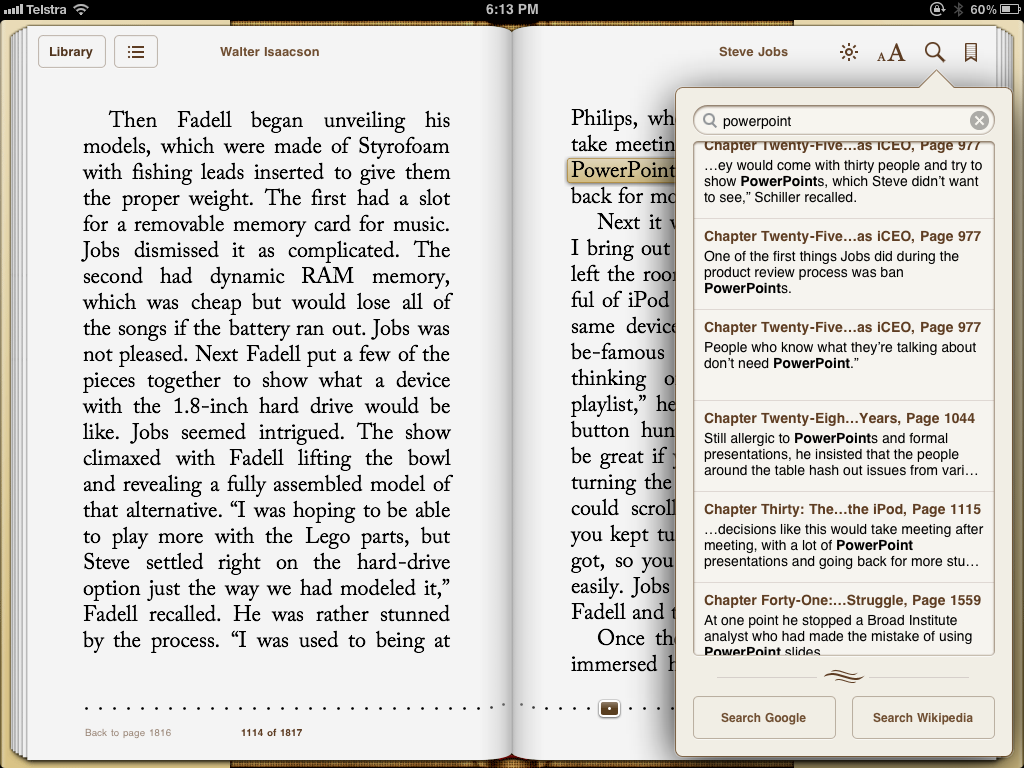
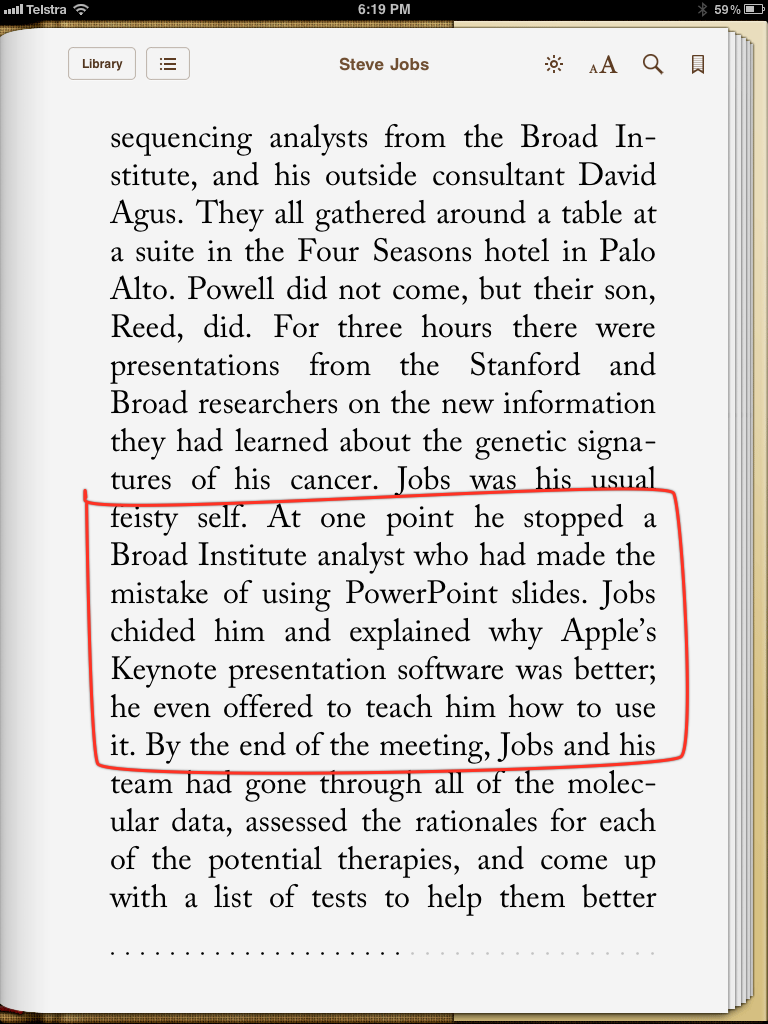
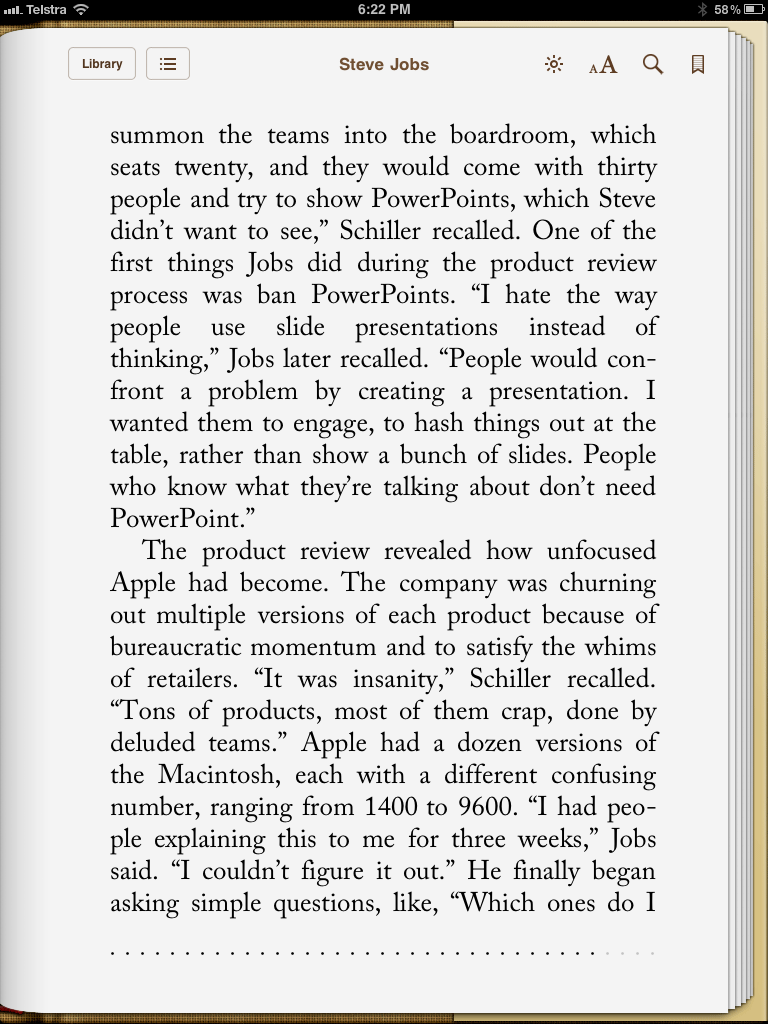


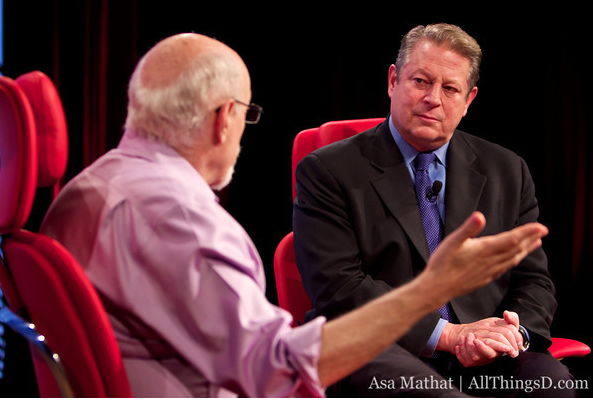


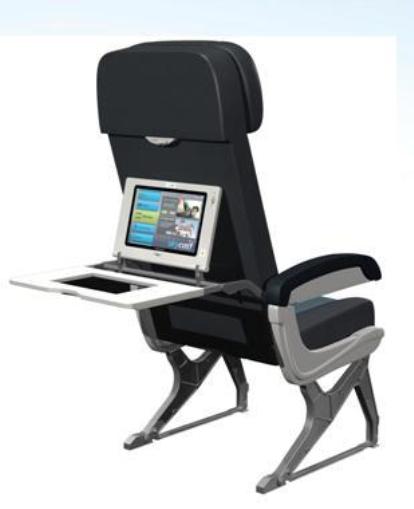


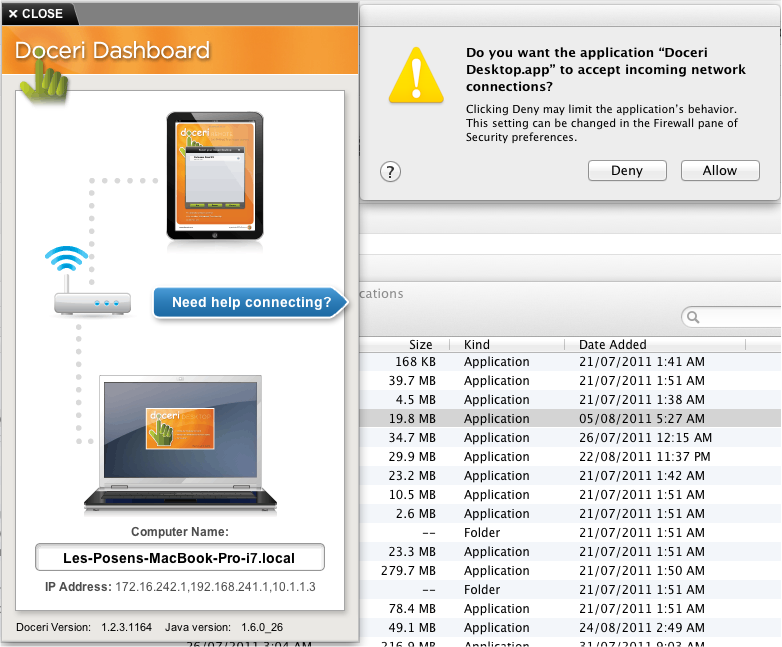
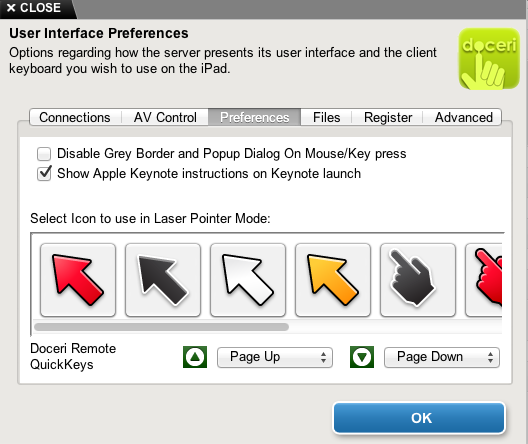
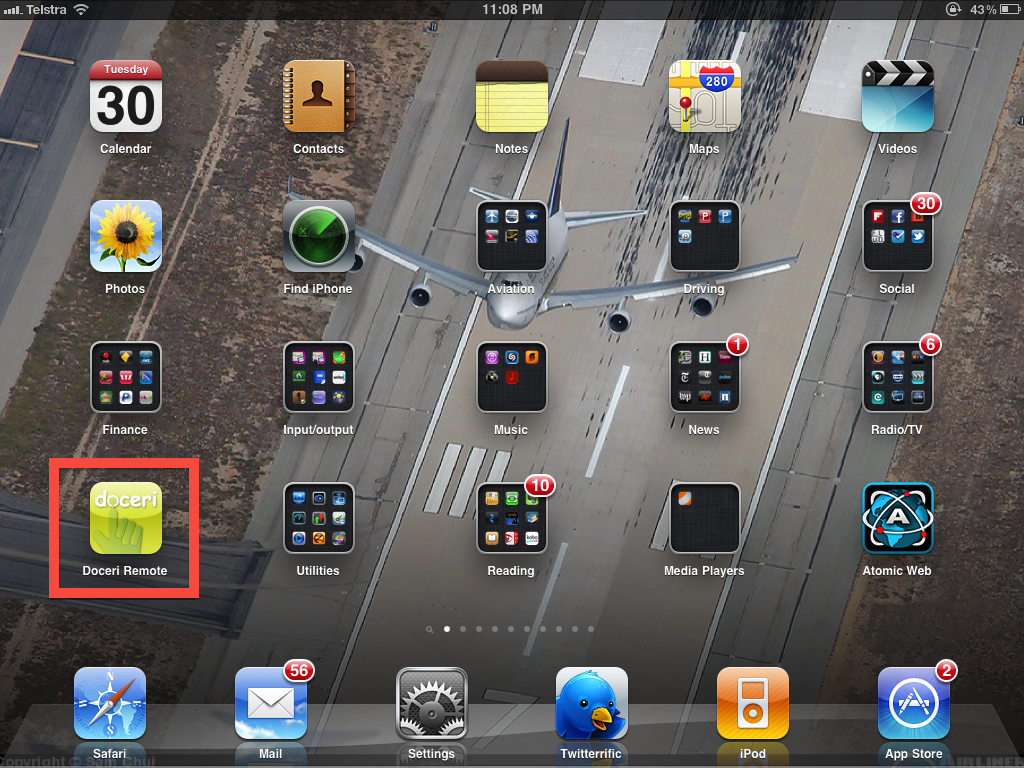

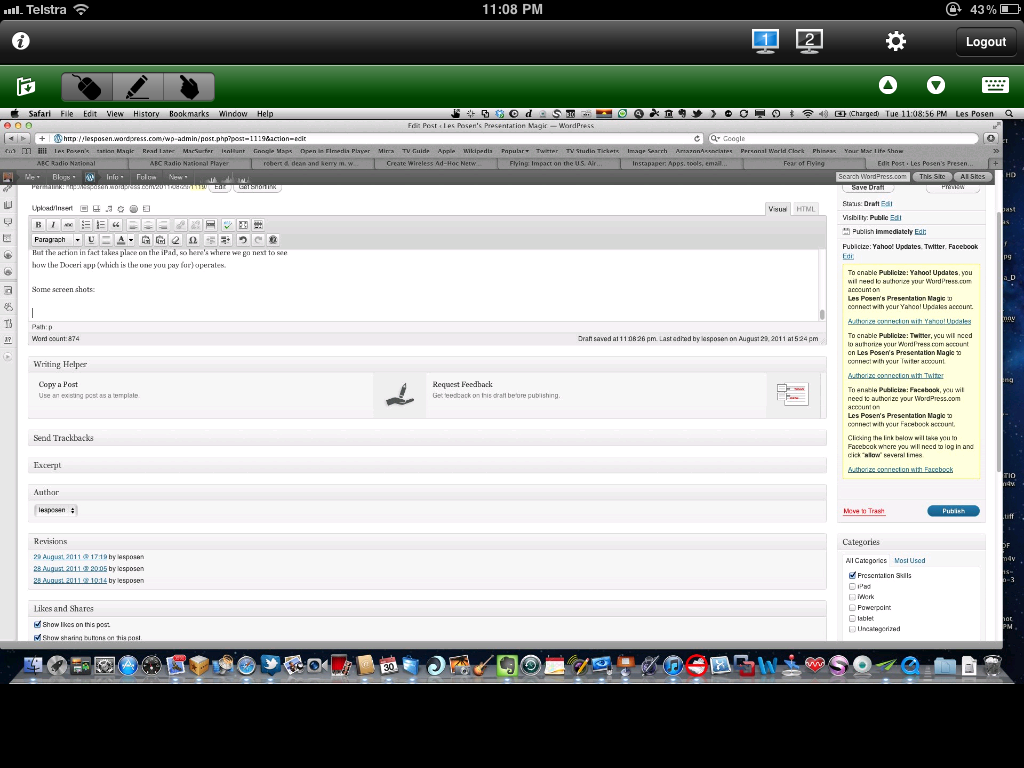
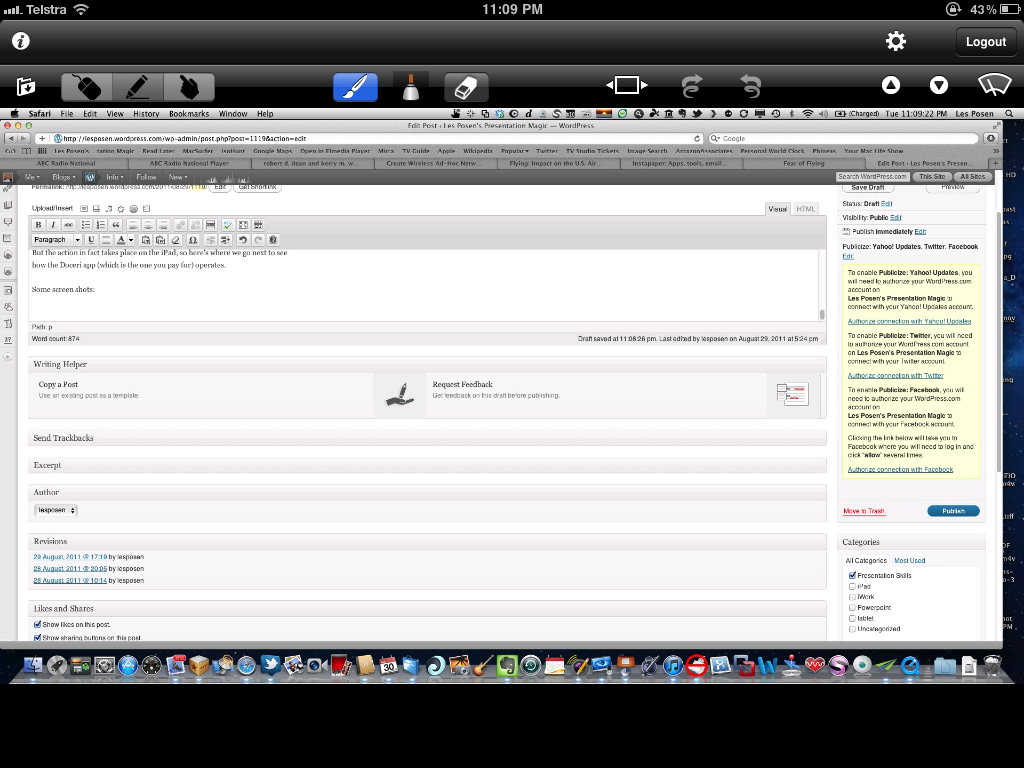


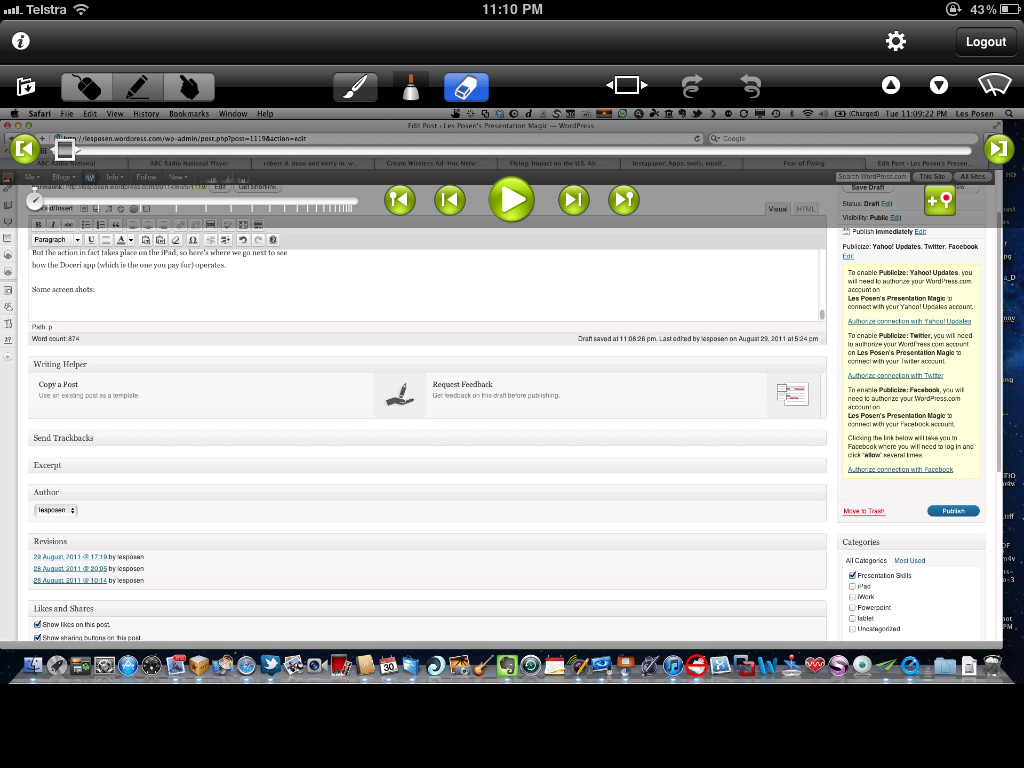


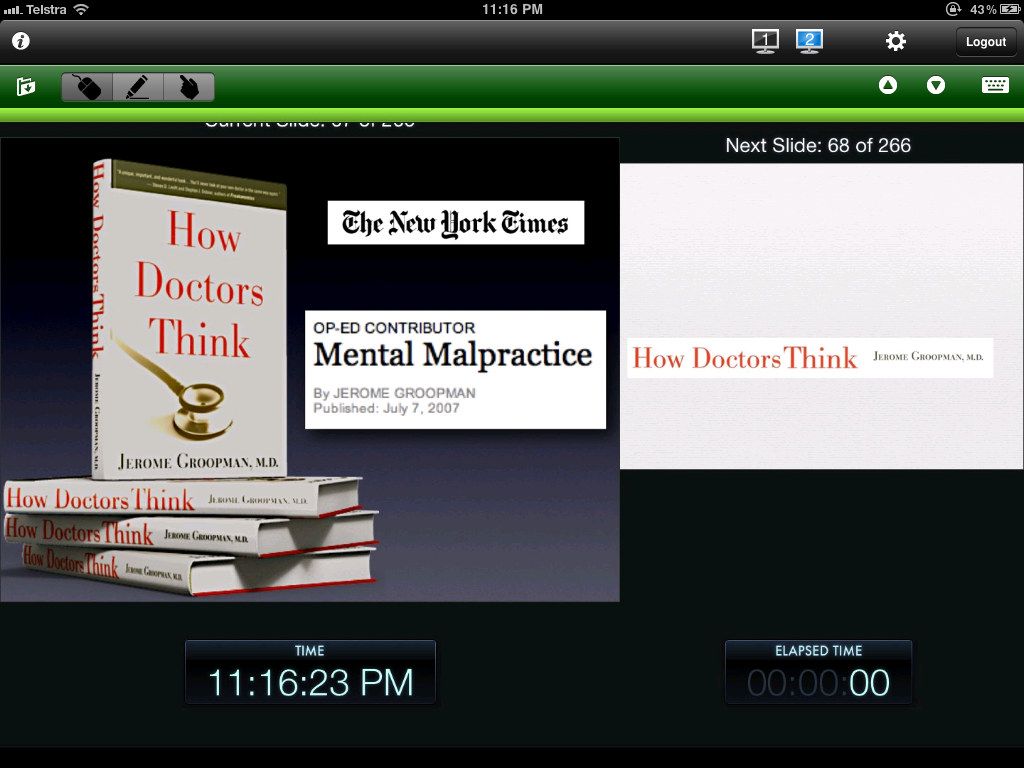
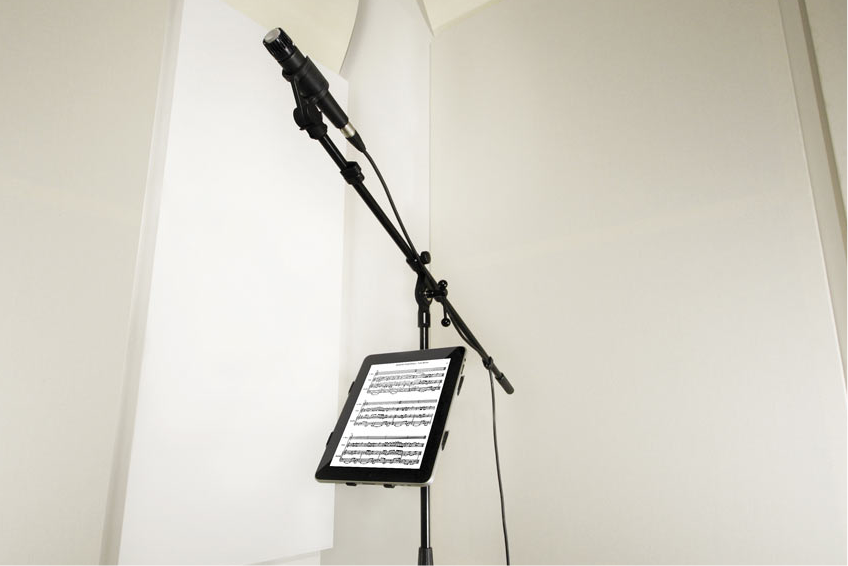


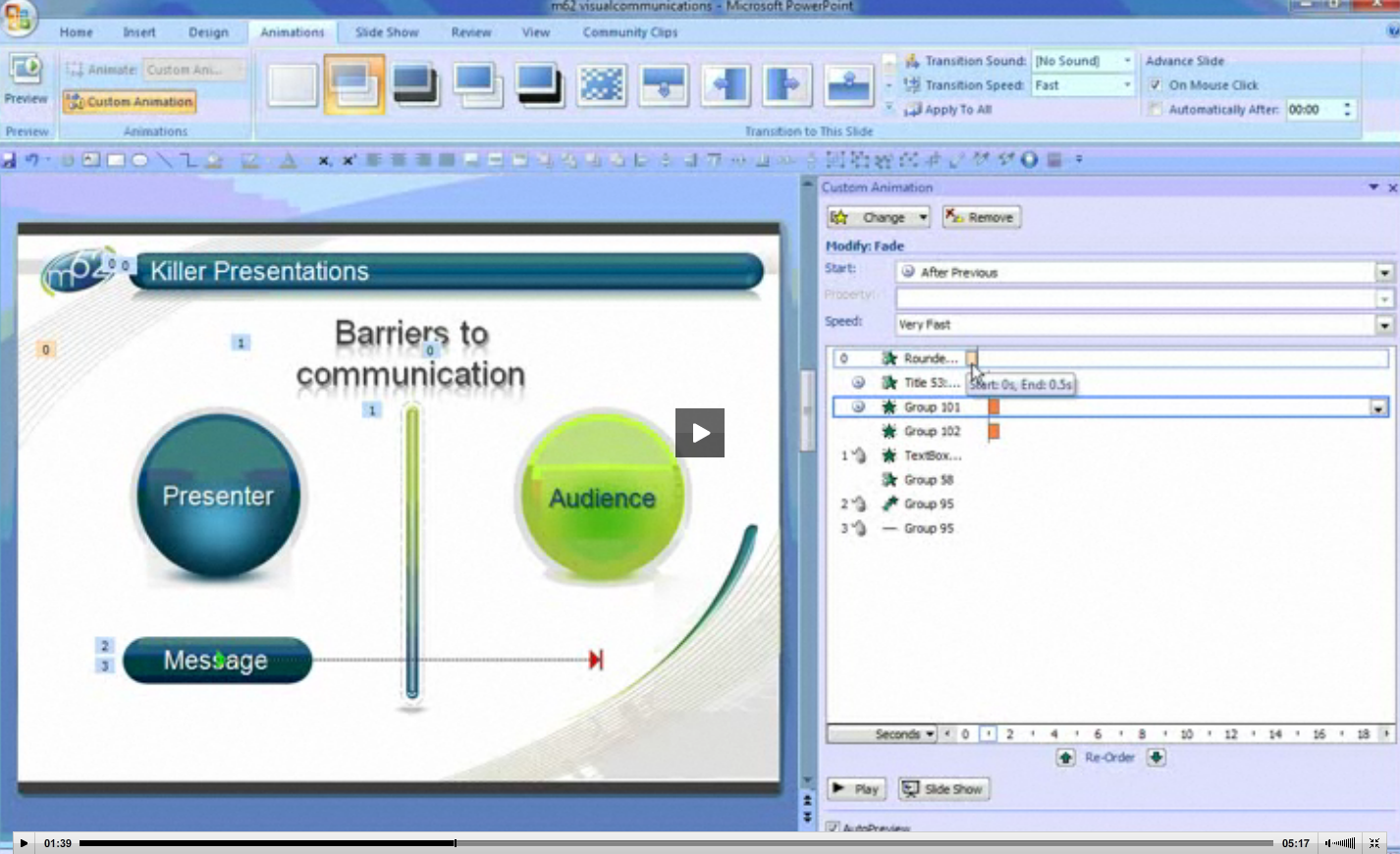




 Les Posen's Presentation Magic